
Gemini
Browser-first animation code, AI portraits, and photoshoots with strong structure, but mixed visual polish
Strong on browser workflow and likeness, weaker on cinematic polish
- You want to generate animation code from plain-language prompts and stay inside the browser.
- You need live preview and direct code editing without local setup.
- You are building explainer-style animations with multiple scenes, branches, or state changes.
- You need polished cinematic motion graphics on the first pass.
Our take
Gemini is useful when you want to stay in the browser: it can generate working animation code from text, show it in Canvas for immediate preview and editing, and also rerender a single reference image into new scenes without local setup. It generally follows the brief well, whether that means multi-scene explainer logic or keeping a subject recognizable across lifestyle shots. The tradeoff is consistency of finish: animation outputs can look cramped or dashboard-like, and image rerenders can drift in hair, skin tone, or facial detail in harder scenes.
In-Depth Review
Our detailed analysis of Gemini — features, performance, and real-world testing.
Feature-by-Feature Breakdown
Reference-Guided Portrait Re-RenderingStrong overall▾
Feature tested: Reference-Guided Portrait Re-Rendering
Result: Partial
Verdict: Strong overall
Expected behavior: Uses a single portrait or selfie reference to generate new realistic images of the same person/character in different scenes and pose/angle variants. The exercised inputs included office, podcast, travel, rooftop, stage, warm cafe, horse riding, interrogation room, and street market setups.
Test case: Image → Image
Input type: Image
Input used: Input artifact (Image): Primary reference — INPUT 1.jpg
Observed output: Output artifact (Image): The hand near the trackpad and the hand around the mug both look natural, with no anatomy errors and fingers placed cleanly. — Gemini_Generated_Image_hxtilehxtilehxti.png
Input artifact: Input artifact (Image): Primary reference — INPUT 1.jpg
Output artifact: Output artifact (Image): The hand near the trackpad and the hand around the mug both look natural, with no anatomy errors and fingers placed cleanly. — Gemini_Generated_Image_hxtilehxtilehxti.png
What changed: Image transformed into Image
Test case: Image → Image
Input type: Image
Input used: Input artifact (Image): Primary reference — INPUT 1.jpg
Observed output: Output artifact (Image): The tablet is held flat against the wrist as requested, and the raised-finger gesture looks natural with no distortion. — Gemini_Generated_Image_44pc6k44pc6k44pc.png
Input artifact: Input artifact (Image): Primary reference — INPUT 1.jpg
Output artifact: Output artifact (Image): The tablet is held flat against the wrist as requested, and the raised-finger gesture looks natural with no distortion. — Gemini_Generated_Image_44pc6k44pc6k44pc.png
What changed: Image transformed into Image
Test case: Image → Image
Input type: Image
Input used: Input artifact (Image): Secondary reference — INPUT 2.jpg
Observed output: Output artifact (Image): The bottle grip and bare foot are anatomically correct, and the couch compression under the subject's weight reads realistically. — Gemini_Generated_Image_c5pi0jc5pi0jc5pi.png
Input artifact: Input artifact (Image): Secondary reference — INPUT 2.jpg
Output artifact: Output artifact (Image): The bottle grip and bare foot are anatomically correct, and the couch compression under the subject's weight reads realistically. — Gemini_Generated_Image_c5pi0jc5pi0jc5pi.png
What changed: Image transformed into Image
Test case: Image → Image
Input type: Image
Input used: Input artifact (Image): Secondary reference — INPUT 2.jpg
Observed output: Output artifact (Image): The hand near the temple has natural finger separation, and the second hand resting near the mic stand is placed correctly. — Gemini_Generated_Image_jxiv4gjxiv4gjxiv.png
Input artifact: Input artifact (Image): Secondary reference — INPUT 2.jpg
Output artifact: Output artifact (Image): The hand near the temple has natural finger separation, and the second hand resting near the mic stand is placed correctly. — Gemini_Generated_Image_jxiv4gjxiv4gjxiv.png
What changed: Image transformed into Image
Test case: Image → Image
Input type: Image
Input used: Input artifact (Image): Stress-test reference — INPUT 3.jpg
Observed output: Output artifact (Image): The hand holding the bag strap is naturally placed, and the standing weight shift reads correctly in the pose. — Gemini_Generated_Image_rr9ajzrr9ajzrr9a.png
Input artifact: Input artifact (Image): Stress-test reference — INPUT 3.jpg
Output artifact: Output artifact (Image): The hand holding the bag strap is naturally placed, and the standing weight shift reads correctly in the pose. — Gemini_Generated_Image_rr9ajzrr9ajzrr9a.png
What changed: Image transformed into Image
Test case: Image → Image
Input type: Image
Input used: Input artifact (Image): Stress-test reference — INPUT 3.jpg
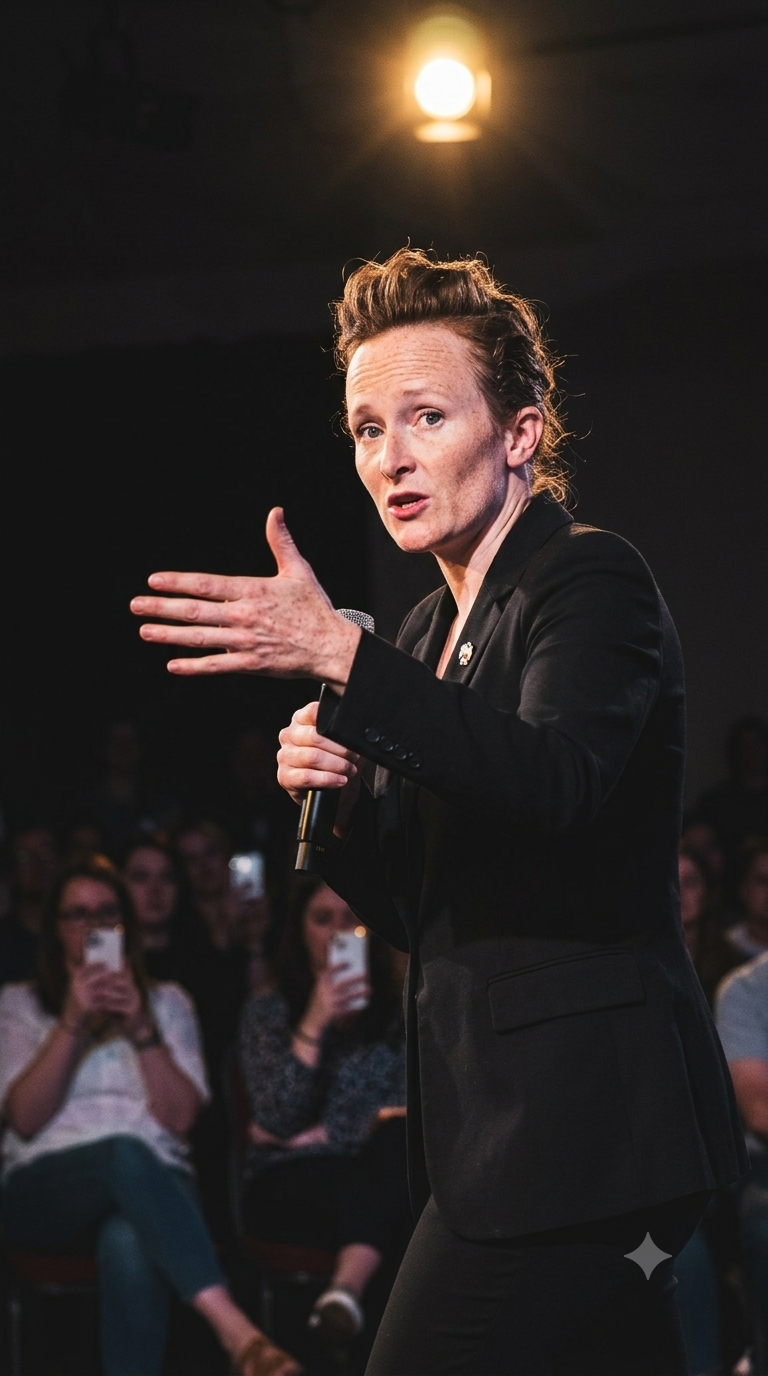
Observed output: Output artifact (Image): The extended hand keeps the correct finger count and spacing despite being close to the lens, and the mic-holding hand also looks natural. — Gemini_Generated_Image_9csz9m9csz9m9csz.png
Input artifact: Input artifact (Image): Stress-test reference — INPUT 3.jpg
Output artifact: Output artifact (Image): The extended hand keeps the correct finger count and spacing despite being close to the lens, and the mic-holding hand also looks natural. — Gemini_Generated_Image_9csz9m9csz9m9csz.png
What changed: Image transformed into Image
Test case: Image → Image
Input type: Image
Input used: Input artifact (Image): Input — input 1.png
Observed output: Output artifact (Image): Strong scene compliance but very weak identity match: the cozy cafe setting, sweater, and braid were prompt-accurate, yet the face was heavily beautified and read as a different character with softened natural facial marks. — Gemini_input1_warm_cafe.png
Input artifact: Input artifact (Image): Input — input 1.png
Output artifact: Output artifact (Image): Strong scene compliance but very weak identity match: the cozy cafe setting, sweater, and braid were prompt-accurate, yet the face was heavily beautified and read as a different character with softened natural facial marks. — Gemini_input1_warm_cafe.png
What changed: Image transformed into Image
Test case: Image → Image
Input type: Image
Input used: Input artifact (Image): Input — input 1.png
Observed output: Output artifact (Image): Strong cinematic action scene and prompt-accurate outfit, but identity completely changed; face shape, eyes, eyebrows, and hairstyle no longer matched the reference. — Gemini_input1_horseride.png
Input artifact: Input artifact (Image): Input — input 1.png
Output artifact: Output artifact (Image): Strong cinematic action scene and prompt-accurate outfit, but identity completely changed; face shape, eyes, eyebrows, and hairstyle no longer matched the reference. — Gemini_input1_horseride.png
What changed: Image transformed into Image
Test case: Image → Image
Input type: Image
Input used: Input artifact (Image): Input — input 1.png
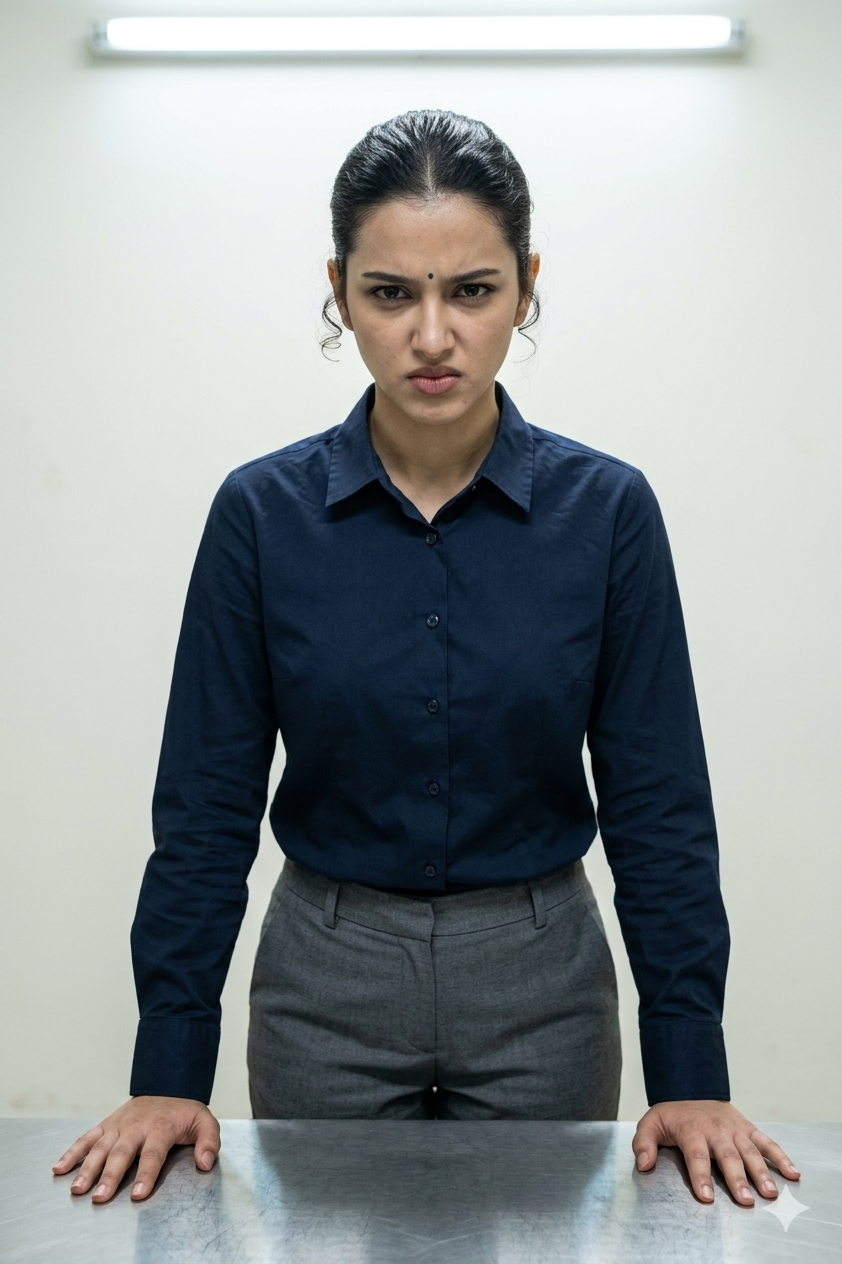
Observed output: Output artifact (Image): Strong scene compliance and the closest identity match from Input 1: the eyes, face shape, nose, and guarded expression stayed close to the reference, though skin texture and natural facial marks were softened. — Gemini_input1_interrogation.png
Input artifact: Input artifact (Image): Input — input 1.png
Output artifact: Output artifact (Image): Strong scene compliance and the closest identity match from Input 1: the eyes, face shape, nose, and guarded expression stayed close to the reference, though skin texture and natural facial marks were softened. — Gemini_input1_interrogation.png
What changed: Image transformed into Image
Test case: Image → Image
Input type: Image
Input used: Input artifact (Image): Input — input 2.png
Observed output: Output artifact (Image): Strong identity preservation and prompt adherence: the face stayed close to Input 2, the sari and market scene were accurate, and only some skin texture was smoothed. — Gemini_input2_market.png
Input artifact: Input artifact (Image): Input — input 2.png
Output artifact: Output artifact (Image): Strong identity preservation and prompt adherence: the face stayed close to Input 2, the sari and market scene were accurate, and only some skin texture was smoothed. — Gemini_input2_market.png
What changed: Image transformed into Image
Test case: Image → Image
Input type: Image
Input used: Input artifact (Image): Input — image.png
Observed output: Output artifact (Image): Weak identity and partial scene match: clothing and rooftop context were right, but the face became generic, the near-profile angle was lost, and the warm golden-hour lighting was cooler and more daytime-like. — Gemini_input3_rooftop.png
Input artifact: Input artifact (Image): Input — image.png
Output artifact: Output artifact (Image): Weak identity and partial scene match: clothing and rooftop context were right, but the face became generic, the near-profile angle was lost, and the warm golden-hour lighting was cooler and more daytime-like. — Gemini_input3_rooftop.png
What changed: Image transformed into Image
Test case: Image → Image
Input type: Image
Input used: Input artifact (Image): Input — input 2.png
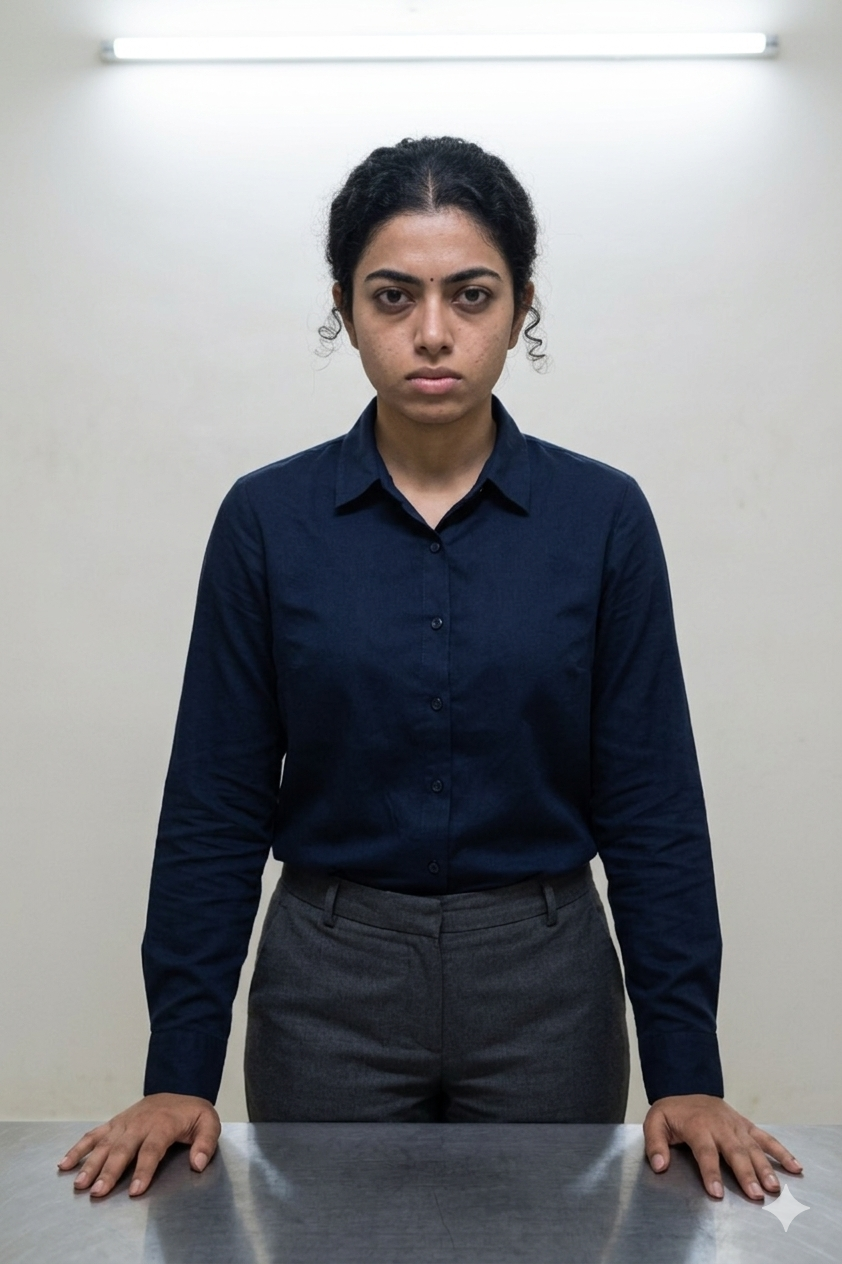
Observed output: Output artifact (Image): Good identity preservation from Input 2, but the expression miss is clear: the face, skin tone, and curly hair stayed close, yet the output turned neutral instead of angry or guarded. — Gemini_input2_interrogation.png
Input artifact: Input artifact (Image): Input — input 2.png
Output artifact: Output artifact (Image): Good identity preservation from Input 2, but the expression miss is clear: the face, skin tone, and curly hair stayed close, yet the output turned neutral instead of angry or guarded. — Gemini_input2_interrogation.png
What changed: Image transformed into Image
Why it matters / Conclusion: Gemini is reliable for turning one clear reference into a recognizable set of lifestyle and professional photos. It performs best when the reference is frontal or otherwise clear, and it stays realistic even on a harder side-angle input, but hairstyle and skin tone are not perfectly locked.
Uses a single portrait or selfie reference to generate new realistic images of the same person/character in different scenes and pose/angle variants. The exercised inputs included office, podcast, travel, rooftop, stage, warm cafe, horse riding, interrogation room, and street market setups.















One-Step Browser Upload-and-Generate▾
Feature tested: One-Step Browser Upload-and-Generate
Result: Passed
Expected behavior: Browser-based generation from a single reference image with direct downloadable output, exercised on Gemini’s upload → generate → download flow. The test emphasized low-friction use without extra configuration.
Test case: Text prompt → Text prompt
Input type: Text prompt
Input used: Input artifact (Text prompt): Input
Observed output: Output artifact (Text prompt): Output
Input artifact: Input artifact (Text prompt): Input
Output artifact: Output artifact (Text prompt): Output
What changed: Text prompt transformed into Text prompt
Why it matters / Conclusion: Low-friction browser workflow: upload a single reference image, get a result on the first pass, and download it directly without extra configuration.
Browser-based generation from a single reference image with direct downloadable output, exercised on Gemini’s upload → generate → download flow. The test emphasized low-friction use without extra configuration.
Prompt-to-Code Animation GenerationReliable▾
Feature tested: Prompt-to-Code Animation Generation
Result: Partial
Verdict: Reliable
Expected behavior: Gemini turned plain-language animation prompts into working browser code across topics like search engines, the PipelineFlow SaaS concept, a French Revolution timeline, RAG, and cloud storage sync. The outputs were also browser-ready standalone pages and could support multi-scene, branching explainers.
Test case: Text prompt → Video file
Input type: Text prompt
Input used: Input artifact (Text prompt): INPUT
Observed output: Output artifact (Video file): Generated syntactically correct HTML/CSS/JavaScript on the first attempt and covered crawling, indexing, and ranking, but the animation lived inside a small macOS-style tab frame and felt more presentation-like than cinematic. — gemini-search-engine-animation.mp4
Input artifact: Input artifact (Text prompt): INPUT
Output artifact: Output artifact (Video file): Generated syntactically correct HTML/CSS/JavaScript on the first attempt and covered crawling, indexing, and ranking, but the animation lived inside a small macOS-style tab frame and felt more presentation-like than cinematic. — gemini-search-engine-animation.mp4
What changed: Text prompt transformed into Video file
Test case: Text prompt → Video file
Input type: Text prompt
Input used: Input artifact (Text prompt): INPUT
Observed output: Output artifact (Video file): Followed the requested lead-aggregation and prioritization flow accurately, but the result still read more like a webpage than a dedicated animation and included some website-like clutter. — gemini-saas-animation.webm
Input artifact: Input artifact (Text prompt): INPUT
Output artifact: Output artifact (Video file): Followed the requested lead-aggregation and prioritization flow accurately, but the result still read more like a webpage than a dedicated animation and included some website-like clutter. — gemini-saas-animation.webm
What changed: Text prompt transformed into Video file
Test case: Text prompt → Video file
Input type: Text prompt
Input used: Input artifact (Text prompt): INPUT
Observed output: Output artifact (Video file): All requested years and historical details were present, but the layout behaved like a dashboard with many elements visible at once, making the timeline harder to read as an explainer. — gemini-historical-animation.mp4
Input artifact: Input artifact (Text prompt): INPUT
Output artifact: Output artifact (Video file): All requested years and historical details were present, but the layout behaved like a dashboard with many elements visible at once, making the timeline harder to read as an explainer. — gemini-historical-animation.mp4
What changed: Text prompt transformed into Video file
Test case: Text prompt → Video file
Input type: Text prompt
Input used: Input artifact (Text prompt): INPUT
Observed output: Output artifact (Video file): Covered the full RAG pipeline, including the confidence-threshold branch and retry loop, in a clean and uncluttered layout, though the visuals relied mostly on text labels rather than visual metaphors. — Screen Recording 2026-05-12 170825.mp4
Input artifact: Input artifact (Text prompt): INPUT
Output artifact: Output artifact (Video file): Covered the full RAG pipeline, including the confidence-threshold branch and retry loop, in a clean and uncluttered layout, though the visuals relied mostly on text labels rather than visual metaphors. — Screen Recording 2026-05-12 170825.mp4
What changed: Text prompt transformed into Video file
Test case: Text prompt → Video file
Input type: Text prompt
Input used: Input artifact (Text prompt): INPUT
Observed output: Output artifact (Video file): Represented chunking, encryption, sync, conflict detection, and version history correctly, but the first version had overlap issues and needed a follow-up prompt to clean up spacing. — Screen Recording 2026-05-04 123151.mp4
Input artifact: Input artifact (Text prompt): INPUT
Output artifact: Output artifact (Video file): Represented chunking, encryption, sync, conflict detection, and version history correctly, but the first version had overlap issues and needed a follow-up prompt to clean up spacing. — Screen Recording 2026-05-04 123151.mp4
What changed: Text prompt transformed into Video file
Test case: Text prompt → Video file
Input type: Text prompt
Input used: Input artifact (Text prompt): Input
Observed output: Output artifact (Video file): Generated a clean search-engine explainer with crawling, indexing, and ranking steps; the code ran on the first attempt, but the framing felt more like a small presentation window than full-screen motion graphics. — gemini-search-engine-animation.mp4
Input artifact: Input artifact (Text prompt): Input
Output artifact: Output artifact (Video file): Generated a clean search-engine explainer with crawling, indexing, and ranking steps; the code ran on the first attempt, but the framing felt more like a small presentation window than full-screen motion graphics. — gemini-search-engine-animation.mp4
What changed: Text prompt transformed into Video file
Test case: Text prompt → Video file
Input type: Text prompt
Input used: Input artifact (Text prompt): Input
Observed output: Output artifact (Video file): Generated a smooth SaaS explainer that covered the requested pipeline, scoring, routing, duplicate merge, and spam review logic, though the result still read more like a website layout than a cinematic animation video. — gemini-saas-animation.webm
Input artifact: Input artifact (Text prompt): Input
Output artifact: Output artifact (Video file): Generated a smooth SaaS explainer that covered the requested pipeline, scoring, routing, duplicate merge, and spam review logic, though the result still read more like a website layout than a cinematic animation video. — gemini-saas-animation.webm
What changed: Text prompt transformed into Video file
Test case: Text prompt → Video file
Input type: Text prompt
Input used: Input artifact (Text prompt): Input
Observed output: Output artifact (Video file): Generated a historical timeline animation that included the requested years and major events, but the scene density made it feel cluttered and closer to a dashboard than a clear explainer. — gemini-historical-animation.mp4
Input artifact: Input artifact (Text prompt): Input
Output artifact: Output artifact (Video file): Generated a historical timeline animation that included the requested years and major events, but the scene density made it feel cluttered and closer to a dashboard than a clear explainer. — gemini-historical-animation.mp4
What changed: Text prompt transformed into Video file
Test case: Text prompt → Video file
Input type: Text prompt
Input used: Input artifact (Text prompt): Input
Observed output: Output artifact (Video file): Generated a clean self-contained GSAP-based RAG explainer that covered the full pipeline and retry loop correctly, with functional motion but relatively basic visual metaphors. — Screen Recording 2026-05-12 170825.mp4
Input artifact: Input artifact (Text prompt): Input
Output artifact: Output artifact (Video file): Generated a clean self-contained GSAP-based RAG explainer that covered the full pipeline and retry loop correctly, with functional motion but relatively basic visual metaphors. — Screen Recording 2026-05-12 170825.mp4
What changed: Text prompt transformed into Video file
Test case: Text prompt → Video file
Input type: Text prompt
Input used: Input artifact (Text prompt): Input
Observed output: Output artifact (Video file): Generated a working cloud-storage explainer with chunking, encryption, sync, conflict detection, and version history, but the first version needed a follow-up fix for overlapping layout issues. — Screen Recording 2026-05-04 123151.mp4
Input artifact: Input artifact (Text prompt): Input
Output artifact: Output artifact (Video file): Generated a working cloud-storage explainer with chunking, encryption, sync, conflict detection, and version history, but the first version needed a follow-up fix for overlapping layout issues. — Screen Recording 2026-05-04 123151.mp4
What changed: Text prompt transformed into Video file
Test case: Text prompt → Video file
Input type: Text prompt
Input used: Input artifact (Text prompt): Input
Observed output: Output artifact (Video file): The tool visualized the query, embedding, vector database, confidence threshold, retrieved chunks, prompt assembly, LLM response, feedback, and query refinement correctly, including the retry loop when retrieval failed. — Screen Recording 2026-05-12 170825.mp4
Input artifact: Input artifact (Text prompt): Input
Output artifact: Output artifact (Video file): The tool visualized the query, embedding, vector database, confidence threshold, retrieved chunks, prompt assembly, LLM response, feedback, and query refinement correctly, including the retry loop when retrieval failed. — Screen Recording 2026-05-12 170825.mp4
What changed: Text prompt transformed into Video file
Test case: Text prompt → Video file
Input type: Text prompt
Input used: Input artifact (Text prompt): Input
Observed output: Output artifact (Video file): The animation showed the requested multi-device sync and conflict-handling flow accurately, though the first version had overlapping layout problems that required a follow-up prompt. — Screen Recording 2026-05-04 123151.mp4
Input artifact: Input artifact (Text prompt): Input
Output artifact: Output artifact (Video file): The animation showed the requested multi-device sync and conflict-handling flow accurately, though the first version had overlapping layout problems that required a follow-up prompt. — Screen Recording 2026-05-04 123151.mp4
What changed: Text prompt transformed into Video file
Test case: Text prompt → Video file
Input type: Text prompt
Input used: Input artifact (Text prompt): Input
Observed output: Output artifact (Video file): All requested years and events were present, but the lack of strong scene separation made the sequence hard to read and gave it a dashboard-like feel. — gemini-historical-animation.mp4
Input artifact: Input artifact (Text prompt): Input
Output artifact: Output artifact (Video file): All requested years and events were present, but the lack of strong scene separation made the sequence hard to read and gave it a dashboard-like feel. — gemini-historical-animation.mp4
What changed: Text prompt transformed into Video file
Test case: Text prompt → Video file
Input type: Text prompt
Input used: Input artifact (Text prompt): Input
Observed output: Output artifact (Video file): The search-engine result was produced as a self-contained browser page with embedded code and automatic playback on load. — gemini-search-engine-animation.mp4
Input artifact: Input artifact (Text prompt): Input
Output artifact: Output artifact (Video file): The search-engine result was produced as a self-contained browser page with embedded code and automatic playback on load. — gemini-search-engine-animation.mp4
What changed: Text prompt transformed into Video file
Test case: Text prompt → Video file
Input type: Text prompt
Input used: Input artifact (Text prompt): Input
Observed output: Output artifact (Video file): The RAG output followed the requested single-file browser workflow and was previewable without a local render pipeline. — Screen Recording 2026-05-12 170825.mp4
Input artifact: Input artifact (Text prompt): Input
Output artifact: Output artifact (Video file): The RAG output followed the requested single-file browser workflow and was previewable without a local render pipeline. — Screen Recording 2026-05-12 170825.mp4
What changed: Text prompt transformed into Video file
Test case: Text prompt → Video file
Input type: Text prompt
Input used: Input artifact (Text prompt): Input
Observed output: Output artifact (Video file): The cloud-storage result was a playable browser animation that could be captured directly, even though layout refinement was needed in the first pass. — Screen Recording 2026-05-04 123151.mp4
Input artifact: Input artifact (Text prompt): Input
Output artifact: Output artifact (Video file): The cloud-storage result was a playable browser animation that could be captured directly, even though layout refinement was needed in the first pass. — Screen Recording 2026-05-04 123151.mp4
What changed: Text prompt transformed into Video file
Why it matters / Conclusion: Gemini is dependable for turning text prompts into functioning animation code across a range of explainer topics, but the result is usually more functional than visually polished.
Gemini turned plain-language animation prompts into working browser code across topics like search engines, the PipelineFlow SaaS concept, a French Revolution timeline, RAG, and cloud storage sync. The outputs were also browser-ready standalone pages and could support multi-scene, branching explainers.
In-Browser Preview and Direct EditingUseful▾
Feature tested: In-Browser Preview and Direct Editing
Result: Passed
Verdict: Useful
Expected behavior: Gemini exposed the generated code inside Canvas so the user could preview, edit, and iterate on it directly in the browser without leaving the tool or setting up a local environment.
Test case: Text prompt → Text prompt
Input type: Text prompt
Input used: Input artifact (Text prompt): INPUT
Observed output: Output artifact (Text prompt): Observation
Input artifact: Input artifact (Text prompt): INPUT
Output artifact: Output artifact (Text prompt): Observation
What changed: Text prompt transformed into Text prompt
Test case: Text prompt → Text prompt
Input type: Text prompt
Input used: Input artifact (Text prompt): INPUT
Observed output: Output artifact (Text prompt): Observation
Input artifact: Input artifact (Text prompt): INPUT
Output artifact: Output artifact (Text prompt): Observation
What changed: Text prompt transformed into Text prompt
Test case: Text prompt → Text prompt
Input type: Text prompt
Input used: Input artifact (Text prompt): INPUT
Observed output: Output artifact (Text prompt): Observation
Input artifact: Input artifact (Text prompt): INPUT
Output artifact: Output artifact (Text prompt): Observation
What changed: Text prompt transformed into Text prompt
Test case: Text prompt → Text prompt
Input type: Text prompt
Input used: Input artifact (Text prompt): INPUT
Observed output: Output artifact (Text prompt): Observation
Input artifact: Input artifact (Text prompt): INPUT
Output artifact: Output artifact (Text prompt): Observation
What changed: Text prompt transformed into Text prompt
Test case: Text prompt → Text prompt
Input type: Text prompt
Input used: Input artifact (Text prompt): Input
Observed output: Output artifact (Text prompt): Output
Input artifact: Input artifact (Text prompt): Input
Output artifact: Output artifact (Text prompt): Output
What changed: Text prompt transformed into Text prompt
Test case: Text prompt → Text prompt
Input type: Text prompt
Input used: Input artifact (Text prompt): Input
Observed output: Output artifact (Text prompt): Output
Input artifact: Input artifact (Text prompt): Input
Output artifact: Output artifact (Text prompt): Output
What changed: Text prompt transformed into Text prompt
Why it matters / Conclusion: This was one of Gemini’s clearest strengths: the user could see, edit, and iterate on the generated code directly inside the browser.
Gemini exposed the generated code inside Canvas so the user could preview, edit, and iterate on it directly in the browser without leaving the tool or setting up a local environment.
Animation Playback Configuration▾
Feature tested: Animation Playback Configuration
Result: Partial
Expected behavior: Gemini honored requested autoplay behavior in generated pages, including continuous loops, one-shot runs, and no play/pause controls. The pages were browser-ready and self-contained, though MP4 capture still relied on recording the rendered output.
Test case: Text prompt → Video file
Input type: Text prompt
Input used: Input artifact (Text prompt): INPUT
Observed output: Output artifact (Video file): Animation auto-played on load in a continuous loop with no play/pause controls, but the aspect ratio was small and the result felt presentation-like. — gemini-search-engine-animation.mp4
Input artifact: Input artifact (Text prompt): INPUT
Output artifact: Output artifact (Video file): Animation auto-played on load in a continuous loop with no play/pause controls, but the aspect ratio was small and the result felt presentation-like. — gemini-search-engine-animation.mp4
What changed: Text prompt transformed into Video file
Test case: Text prompt → Video file
Input type: Text prompt
Input used: Input artifact (Text prompt): INPUT
Observed output: Output artifact (Video file): Animation ran once from start to finish with no looping or controls, but it still resembled a webpage more than a cinematic motion piece. — gemini-saas-animation.webm
Input artifact: Input artifact (Text prompt): INPUT
Output artifact: Output artifact (Video file): Animation ran once from start to finish with no looping or controls, but it still resembled a webpage more than a cinematic motion piece. — gemini-saas-animation.webm
What changed: Text prompt transformed into Video file
Test case: Text prompt → Video file
Input type: Text prompt
Input used: Input artifact (Text prompt): INPUT
Observed output: Output artifact (Video file): The page ran once as requested, but the dashboard-like structure crowded too many elements on screen at once. — gemini-historical-animation.mp4
Input artifact: Input artifact (Text prompt): INPUT
Output artifact: Output artifact (Video file): The page ran once as requested, but the dashboard-like structure crowded too many elements on screen at once. — gemini-historical-animation.mp4
What changed: Text prompt transformed into Video file
Test case: Text prompt → Video file
Input type: Text prompt
Input used: Input artifact (Text prompt): INPUT
Observed output: Output artifact (Video file): The animation looped continuously and represented the retry branch, while staying functional and readable. — Screen Recording 2026-05-12 170825.mp4
Input artifact: Input artifact (Text prompt): INPUT
Output artifact: Output artifact (Video file): The animation looped continuously and represented the retry branch, while staying functional and readable. — Screen Recording 2026-05-12 170825.mp4
What changed: Text prompt transformed into Video file
Test case: Text prompt → Video file
Input type: Text prompt
Input used: Input artifact (Text prompt): INPUT
Observed output: Output artifact (Video file): The animation ran once with no looping or controls, and the sync/conflict story completed successfully after a layout fix. — Screen Recording 2026-05-04 123151.mp4
Input artifact: Input artifact (Text prompt): INPUT
Output artifact: Output artifact (Video file): The animation ran once with no looping or controls, and the sync/conflict story completed successfully after a layout fix. — Screen Recording 2026-05-04 123151.mp4
What changed: Text prompt transformed into Video file
Why it matters / Conclusion: Playback instructions were followed reliably; the main limitation was visual polish rather than running behavior.
Gemini honored requested autoplay behavior in generated pages, including continuous loops, one-shot runs, and no play/pause controls. The pages were browser-ready and self-contained, though MP4 capture still relied on recording the rendered output.
Featured in Rankings
Independent rankings where Gemini was tested and rated.
Banner Preview
How the embed badge will look on your site

Embed HTML
Copy this code to your website source
Quick Integration Guide
- 1Copy the HTML code block above.
- 2Paste it into your site's HTML or CMS editor.
- 3Banner appears instantly on your page.
- 4Links back to your tool profile here.
Similar Tools
Discover more AI tools like Gemini to enhance your workflow.
Comments (0)
Need a custom AI solution for this use case?
If you are looking to build a custom AI photoshoot, reference-based image generation, or scene-controlled image tool for your business or internal workflow, email us at contact@futuresmart.ai.
Found something inaccurate or missing? We try to keep our AI research accurate and useful. If you found outdated information, an issue, or have a suggestion, email us at collaborate@aidemos.com.