
Opus Clip
Hands-off vertical clip generation with captions and emoji accents, if you can live with preset styling and paywalled exports.
Strong automation for repurposing, but not a full caption-design solution
- you want to auto-crop a source video into a face-centered 9:16 short with minimal manual work
- you want semantic emoji overlays and ready-made caption styling
- you want clip scoring and scene analysis to find highlights quickly
- you need custom font uploads or hex color control
Our take
Opus Clip is a strong fit when you want a source video turned into a clean vertical short with minimal manual work. It did the face-centered crop well, added semantic emojis, and stayed stable through pauses, but fast speech exposed caption lag and the freemium workflow blocks the custom fonts, hex colors, and raw SRT exports that brand-heavy teams usually need.
In-Depth Review
Our detailed analysis of Opus Clip — features, performance, and real-world testing.
Feature-by-Feature Breakdown
Auto Short-Form Repurposing with Face TrackingStrong▾
Feature tested: Auto Short-Form Repurposing with Face Tracking
Result: Passed
Verdict: Strong
Expected behavior: Opus Clip repurposes a landscape source into a 9:16 short while keeping the speaker centered. In the markdown-pages test and the narrative clip test, the output stayed locked on the face through minor movement and preserved a clean 1080p profile.
Test case: Text prompt → Image
Input type: Text prompt
Input used: Input artifact (Text prompt): Input
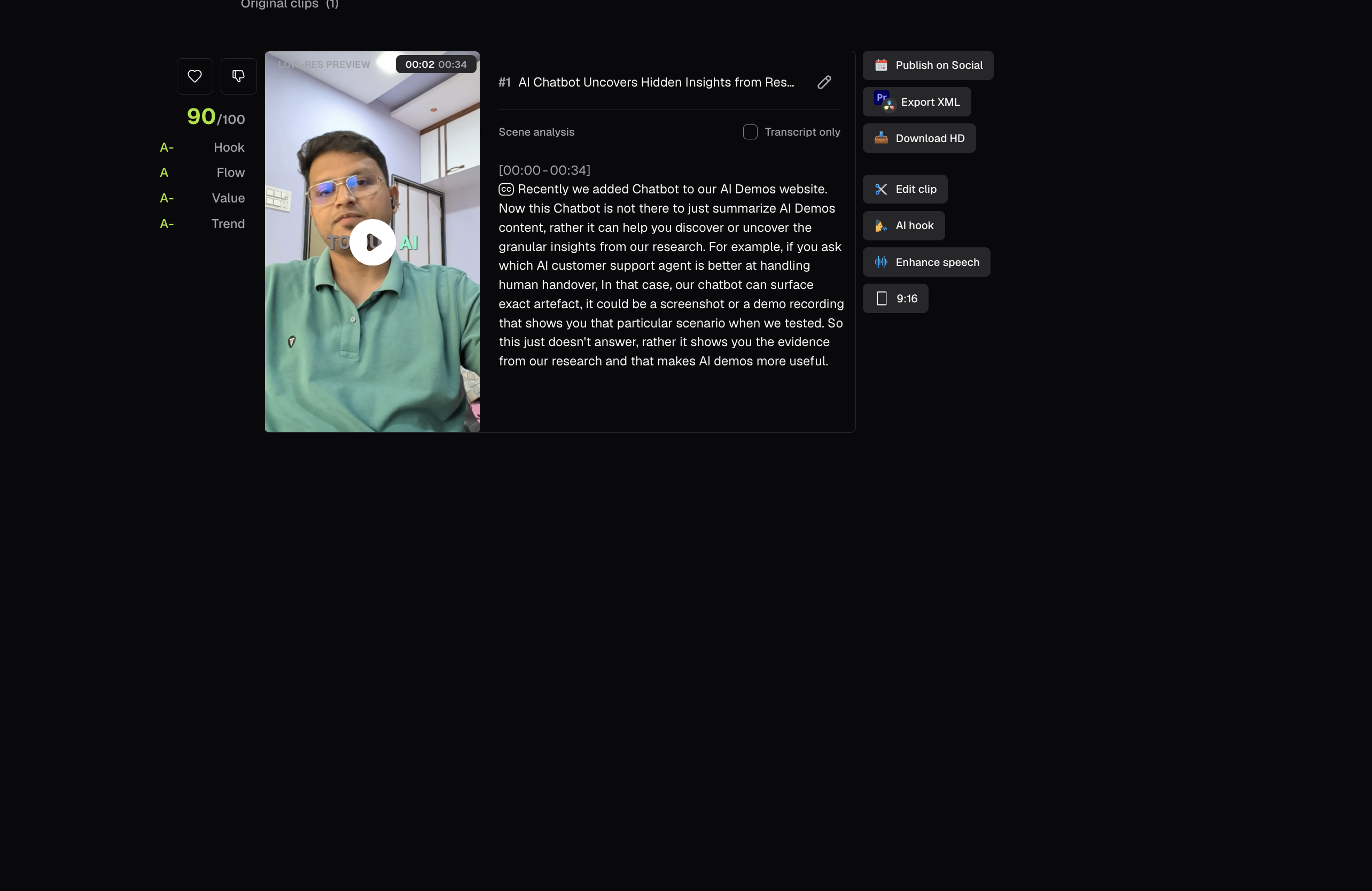
Observed output: Output artifact (Image): The tool auto-reframed the 16:9 source into a vertical 9:16 clip, kept the speaker centered, and displayed a 90/100 clip score with Hook, Flow, Value, and Trend grades. The report says the export stayed clean at 1080p, but the transcription flattened technical syntax by turning ".md" into lowercase markdown and omitting the period. — output-1.png
Input artifact: Input artifact (Text prompt): Input
Output artifact: Output artifact (Image): The tool auto-reframed the 16:9 source into a vertical 9:16 clip, kept the speaker centered, and displayed a 90/100 clip score with Hook, Flow, Value, and Trend grades. The report says the export stayed clean at 1080p, but the transcription flattened technical syntax by turning ".md" into lowercase markdown and omitting the period. — output-1.png
What changed: Text prompt transformed into Image
Test case: Text prompt → Image
Input type: Text prompt
Input used: Input artifact (Text prompt): Input
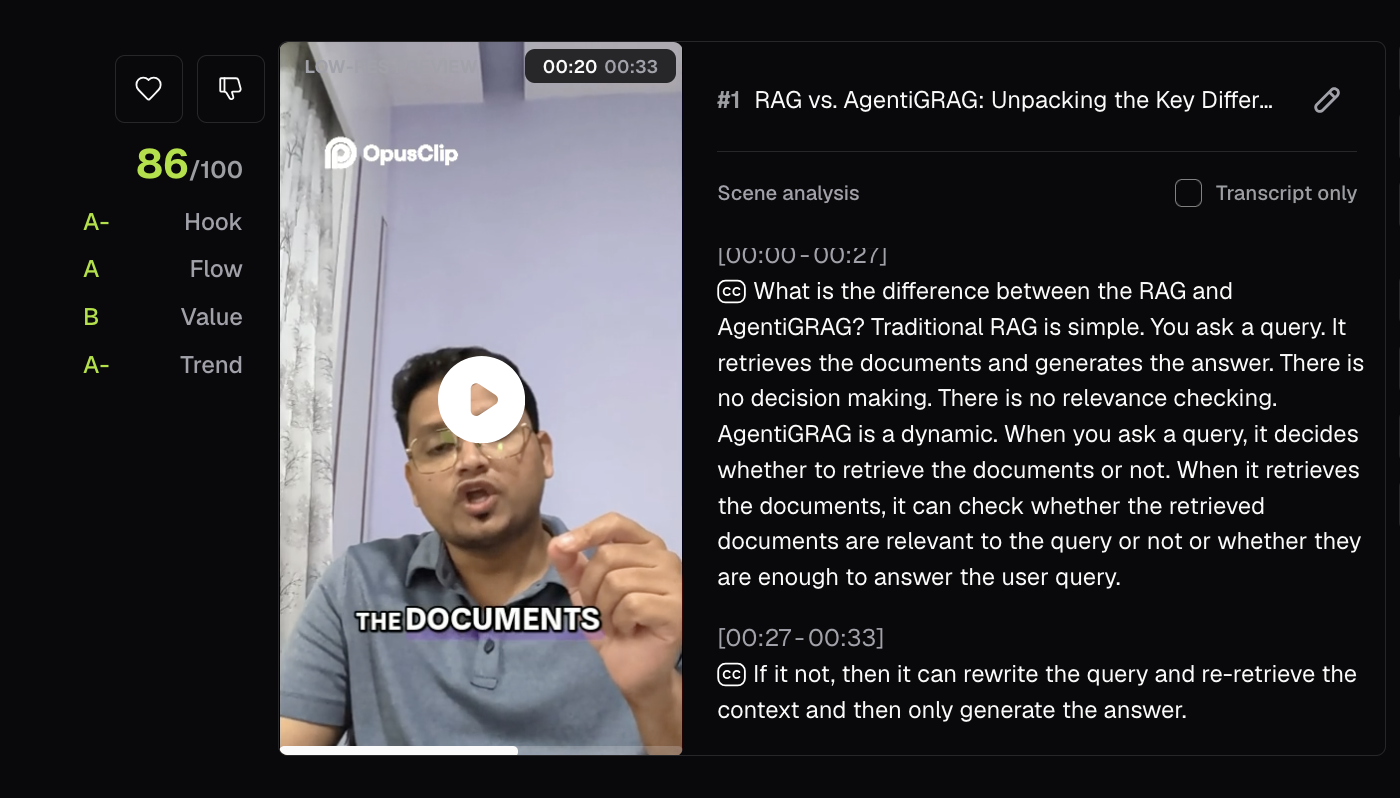
Observed output: Output artifact (Image): The clip review screen showed a vertical segment view with subtitles and an 86/100 score. The report says the tool parsed the narrative structure smoothly, kept the reframed view stable, and avoided timeline fractures while handling the longer explanation. — output-3.png
Input artifact: Input artifact (Text prompt): Input
Output artifact: Output artifact (Image): The clip review screen showed a vertical segment view with subtitles and an 86/100 score. The report says the tool parsed the narrative structure smoothly, kept the reframed view stable, and avoided timeline fractures while handling the longer explanation. — output-3.png
What changed: Text prompt transformed into Image
Why it matters / Conclusion: Reliable for hands-off repurposing into portrait shorts; face-centering and clip packaging were strong, but it is not a precision transcriber for technical syntax.
Opus Clip repurposes a landscape source into a 9:16 short while keeping the speaker centered. In the markdown-pages test and the narrative clip test, the output stayed locked on the face through minor movement and preserved a clean 1080p profile.
Scene Analysis and Clip ScoringStrong▾
Feature tested: Scene Analysis and Clip Scoring
Result: Passed
Verdict: Strong
Expected behavior: The editor exposes a scene-analysis view with transcript text and clip scores so users can triage highlights quickly. In the observed outputs, one clip was scored 90/100 with Hook, Flow, Value, and Trend grades, and the narrative clip was also shown with a score in the review screen.
Test case: Text prompt → Image
Input type: Text prompt
Input used: Input artifact (Text prompt): Input
Observed output: Output artifact (Image): The scene-analysis page showed a 90/100 score and broke the clip into Hook, Flow, Value, and Trend grades. The transcript panel and selected clip view make it clear that Opus Clip is doing automated highlight triage, not just passive captioning. — output-1.png
Input artifact: Input artifact (Text prompt): Input
Output artifact: Output artifact (Image): The scene-analysis page showed a 90/100 score and broke the clip into Hook, Flow, Value, and Trend grades. The transcript panel and selected clip view make it clear that Opus Clip is doing automated highlight triage, not just passive captioning. — output-1.png
What changed: Text prompt transformed into Image
Test case: Text prompt → Image
Input type: Text prompt
Input used: Input artifact (Text prompt): Input
Observed output: Output artifact (Image): The rendered review screen visibly shows an 86/100 score for the RAG vs. AgentiGRAG clip. The report text separately mentions a 91/100 Viral Score, so the exact number differs by view, but the tool is clearly surfacing clip-level scoring and transcript-based scene analysis. — output-3.png
Input artifact: Input artifact (Text prompt): Input
Output artifact: Output artifact (Image): The rendered review screen visibly shows an 86/100 score for the RAG vs. AgentiGRAG clip. The report text separately mentions a 91/100 Viral Score, so the exact number differs by view, but the tool is clearly surfacing clip-level scoring and transcript-based scene analysis. — output-3.png
What changed: Text prompt transformed into Image
Why it matters / Conclusion: Useful for clip triage, but the report text and the rendered screen disagree on the narrative clip's exact score (91/100 vs 86/100).
The editor exposes a scene-analysis view with transcript text and clip scores so users can triage highlights quickly. In the observed outputs, one clip was scored 90/100 with Hook, Flow, Value, and Trend grades, and the narrative clip was also shown with a score in the review screen.
Kinetic Caption Styling and TimingMixed▾
Feature tested: Kinetic Caption Styling and Timing
Result: Partial
Verdict: Mixed
Expected behavior: The caption engine burns in styled subtitles, can place semantic emojis above matched phrases, and keeps subtitle cards visible through pauses. On the chatbot clip and the 1.15x playback stress test, it rendered the cue styling correctly but showed timing drift under faster speech.
Test case: Text prompt → Image
Input type: Text prompt
Input used: Input artifact (Text prompt): Input
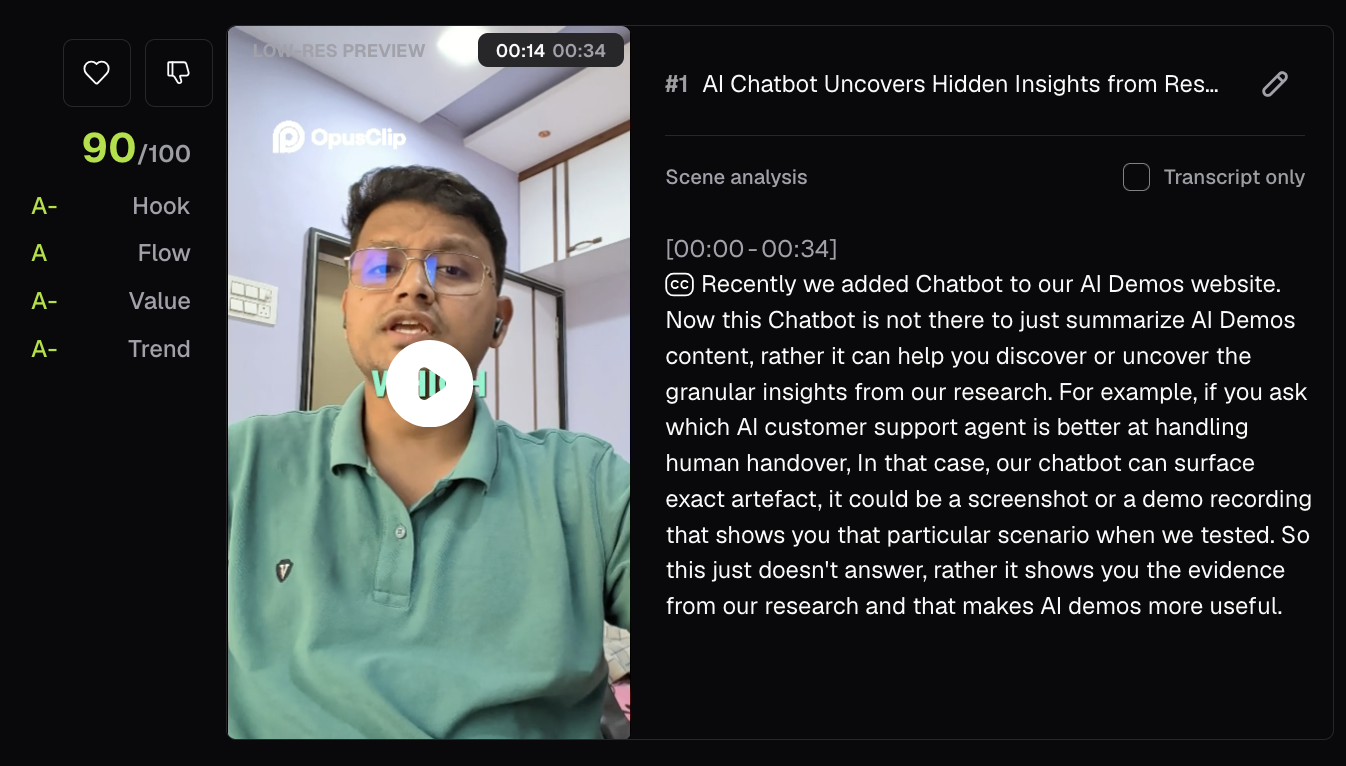
Observed output: Output artifact (Image): The clip review screen showed a 90/100 score and the report says the tool successfully matched semantic emojis to spoken phrases such as "discover." Under a 1.15x stress test, the kinetic text tracking lagged slightly and produced minor frame drops, though the output remained readable. — output-2.png
Input artifact: Input artifact (Text prompt): Input
Output artifact: Output artifact (Image): The clip review screen showed a 90/100 score and the report says the tool successfully matched semantic emojis to spoken phrases such as "discover." Under a 1.15x stress test, the kinetic text tracking lagged slightly and produced minor frame drops, though the output remained readable. — output-2.png
What changed: Text prompt transformed into Image
Test case: Text prompt → Image
Input type: Text prompt
Input used: Input artifact (Text prompt): Input
Observed output: Output artifact (Image): The report says the silence-detection logic isolated breathing spaces and conceptual transition frames without fracturing the timeline, and the text stayed on screen through empty audio windows until the next phoneme began. That makes the timing engine patient on pauses, even if it is less precise on very fast speech. — output-3.png
Input artifact: Input artifact (Text prompt): Input
Output artifact: Output artifact (Image): The report says the silence-detection logic isolated breathing spaces and conceptual transition frames without fracturing the timeline, and the text stayed on screen through empty audio windows until the next phoneme began. That makes the timing engine patient on pauses, even if it is less precise on very fast speech. — output-3.png
What changed: Text prompt transformed into Image
Why it matters / Conclusion: Good for template-driven kinetic captions, but rapid speech still exposes visible timing drift.
The caption engine burns in styled subtitles, can place semantic emojis above matched phrases, and keeps subtitle cards visible through pauses. On the chatbot clip and the 1.15x playback stress test, it rendered the cue styling correctly but showed timing drift under faster speech.
Export and Brand Customization ControlsPoor▾
Feature tested: Export and Brand Customization Controls
Result: Failed
Verdict: Poor
Expected behavior: The export path can deliver MP4s, but in the freemium workflow the output was watermarked and the interface blocked custom font uploads, hex color control, and raw SRT downloads. The paywall modal also advertised higher-tier XML export and multiple aspect ratios.
Test case: Text prompt → Image
Input type: Text prompt
Input used: Input artifact (Text prompt): Input
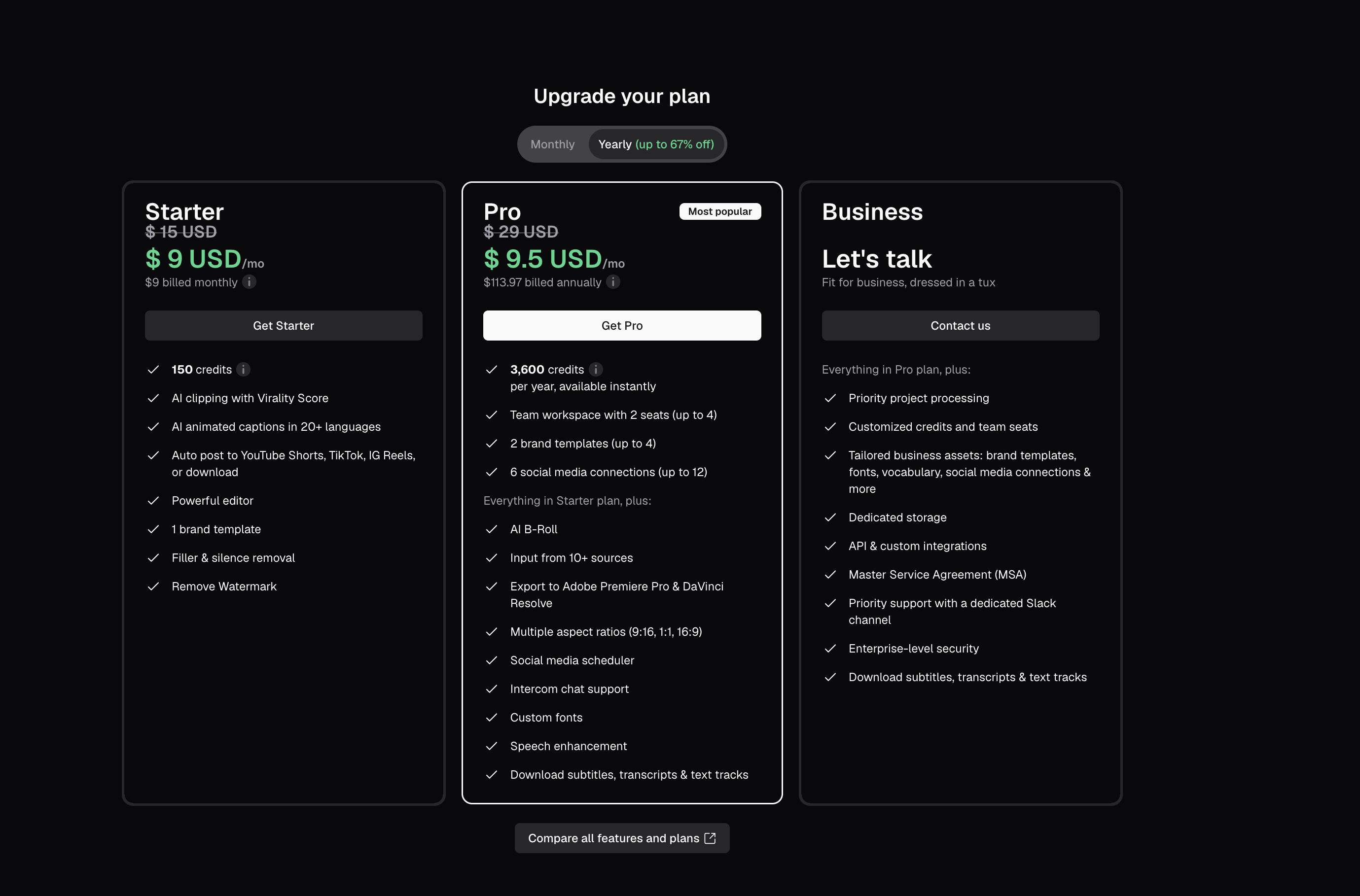
Observed output: Output artifact (Image): The upgrade modal shows Starter, Pro, and Business tiers. The report says free-tier exports are watermarked and that custom font uploads, hex colors, and raw SRT downloads are blocked behind paid tiers. — paywall.png
Input artifact: Input artifact (Text prompt): Input
Output artifact: Output artifact (Image): The upgrade modal shows Starter, Pro, and Business tiers. The report says free-tier exports are watermarked and that custom font uploads, hex colors, and raw SRT downloads are blocked behind paid tiers. — paywall.png
What changed: Text prompt transformed into Image
Why it matters / Conclusion: Free-tier output is usable only as a review asset; brand customization and subtitle portability are paywalled.
The export path can deliver MP4s, but in the freemium workflow the output was watermarked and the interface blocked custom font uploads, hex color control, and raw SRT downloads. The paywall modal also advertised higher-tier XML export and multiple aspect ratios.
Observed plan tiers
The modal presents Starter, Pro, and Business, with paid tiers unlocking brand and export controls.
Pricing and inclusions were observed in the upgrade modal as displayed.
Featured in Rankings
Independent rankings where Opus Clip was tested and rated.
Banner Preview
How the embed badge will look on your site
Embed HTML
Copy this code to your website source
Quick Integration Guide
- 1Copy the HTML code block above.
- 2Paste it into your site's HTML or CMS editor.
- 3Banner appears instantly on your page.
- 4Links back to your tool profile here.
Similar Tools
Discover more AI tools like Opus Clip to enhance your workflow.
Comments (0)
Need a custom AI solution for this use case?
If you are looking to build a custom video clipping, short-form repurposing, or captioned social video workflow for your business or internal workflow, email us at contact@futuresmart.ai.
Found something inaccurate or missing? We try to keep our AI research accurate and useful. If you found outdated information, an issue, or have a suggestion, email us at collaborate@aidemos.com.