
Drawstory Review: Narrative Scripts Tested (2026)
Drawstory Review: AI Storyboarding Tool for Narrative Scripts Tested (2026
Our take
- Your content is narrative-driven — creator stories, branded content, short-form video
- You want controllable shot count per scene for more granular storyboard planning
- Character consistency across narrative frames is a priority
- Your scripts are technical, abstract, or concept-driven
Feature scores on this page: 8.2/10 (5 scored features)
Our take
Drawstory performs strongly on narrative content — consistent characters, strong visual relevance, and a smooth workflow. The controllable shot count per scene is a genuine differentiator that gives creators flexibility without adding complexity. However, the limited range of available visual styles reduces its effectiveness for technical or concept-driven scripts.
In-Depth Review
Our detailed analysis of Drawstory — features, performance, and real-world testing.
Feature-by-Feature Breakdown
We tested each feature individually. Click any card to see inputs, outputs, and our observations.
Controllable Shot CountStrong — flexible shot control per scene9.5/10▾
Feature tested: Controllable Shot Count
Result: Passed (9.5/10)
Verdict: Strong — flexible shot control per scene
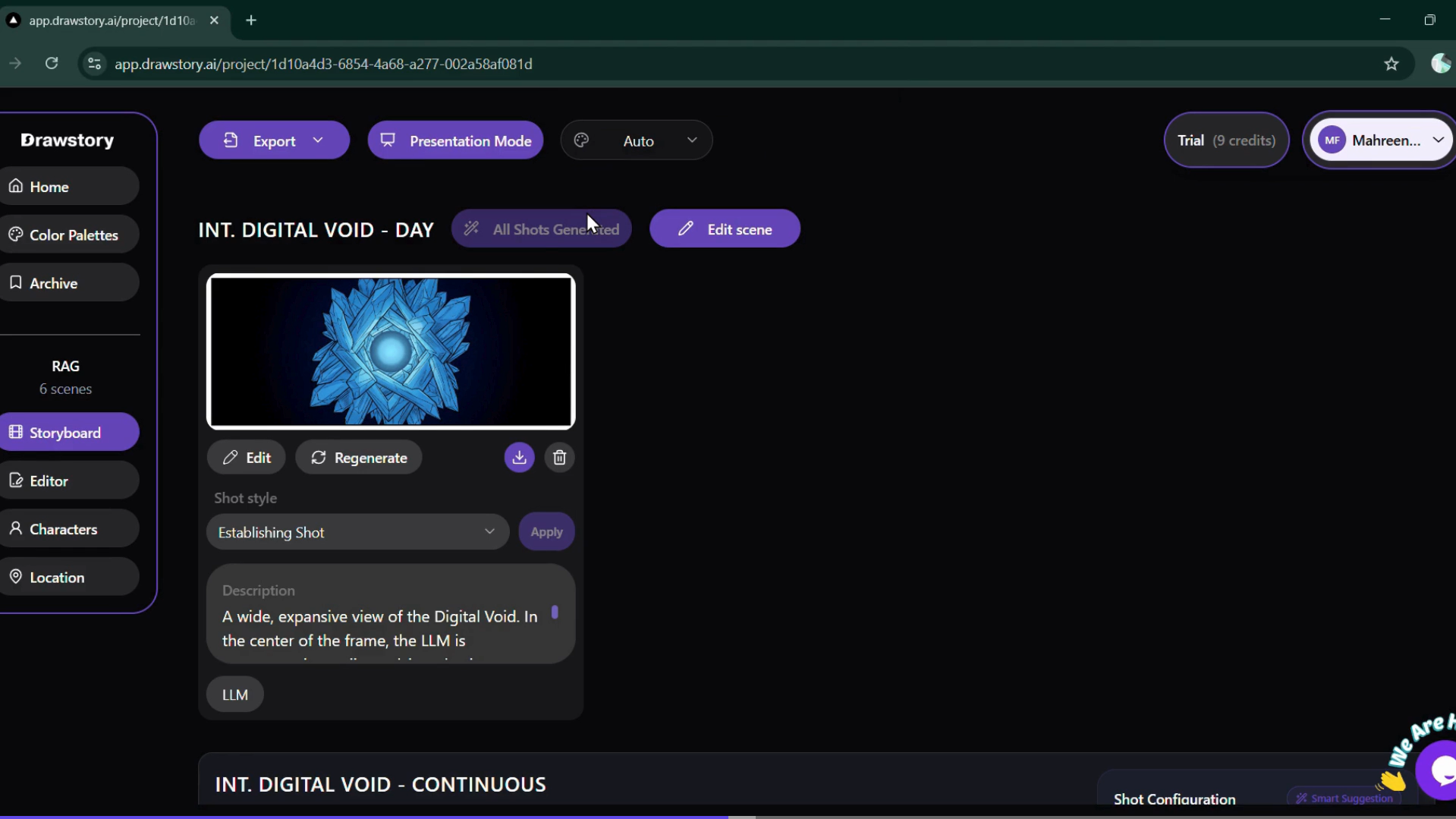
Expected behavior: Drawstory automatically identifies scenes from the script and assigns a configurable number of shots per scene before generation begins. The creator can increase or decrease shot count per scene — giving direct control over output density without manual scene splitting.
Test case: Text prompt → Image
Input type: Text prompt
Input used: Input artifact (Text prompt): Technical Script : A base LLM only knows what it learned during training — its knowledge is frozen at the cutoff. This makes it unreliable for anything recent, private, or domain-specific. Retrieval-Augmented Generation (RAG) solves this by retrieving relevant documents before generation. The query is embedded and similar chunks are fetched from a vector database. Those chunks are injected into the prompt alongside the original query. The LLM generates an answer using both its training knowledge and the retrieved context.
Observed output: Output artifact (Image): Scenes detected and separated — each scene mapped to a configurable number of shots before generation begins. — Screenshot 2026-04-03 185247.png
Input artifact: Input artifact (Text prompt): Technical Script : A base LLM only knows what it learned during training — its knowledge is frozen at the cutoff. This makes it unreliable for anything recent, private, or domain-specific. Retrieval-Augmented Generation (RAG) solves this by retrieving relevant documents before generation. The query is embedded and similar chunks are fetched from a vector database. Those chunks are injected into the prompt alongside the original query. The LLM generates an answer using both its training knowledge and the retrieved context.
Output artifact: Output artifact (Image): Scenes detected and separated — each scene mapped to a configurable number of shots before generation begins. — Screenshot 2026-04-03 185247.png
What changed: Text prompt transformed into Image
Why it matters / Conclusion: Flexible and useful differentiator. Shot count control gives meaningful output control but inconsistent scene granularity across runs is worth noting.
Drawstory automatically identifies scenes from the script and assigns a configurable number of shots per scene before generation begins. The creator can increase or decrease shot count per scene — giving direct control over output density without manual scene splitting.
Style SelectionStrong for narrative, moderate for technical — constrained by style range7.8/10▾
Feature tested: Style Selection
Result: Passed (7.8/10)
Verdict: Strong for narrative, moderate for technical — constrained by style range
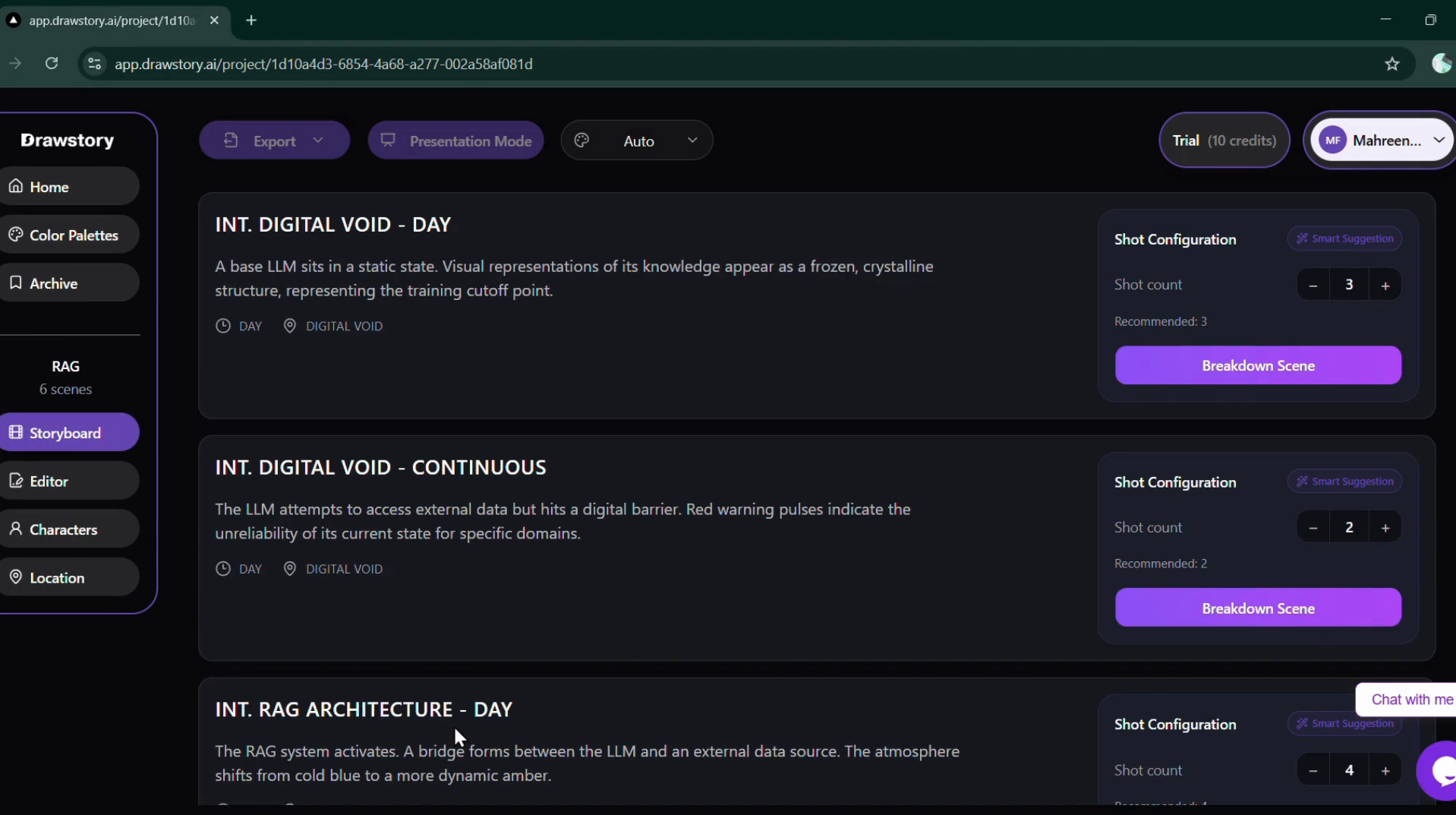
Expected behavior: Drawstory offers limited visual styles before generation begins. Style selection directly impacts visual accuracy and tone — making it the most consequential configuration decision in the workflow.
Test case: Artifact → Image
Input type: Artifact
Input used: Input artifact (Artifact): Six-line narrative script : AI is quietly doing the heavy lifting for millions of creators right now. Alex sits at his desk — scripts to write, footage to edit, deadlines already missed. He opens an AI tool, types out a rough idea, and watches a full script appear on screen. Hours of editing get condensed into minutes — structured, clean, ready to publish. What used to take a full day wraps up in a single sitting. AI isn't a shortcut. For creators like Alex, it's just how work gets done now.
Observed output: Output artifact (Image): Four different style options presented ,best for narrative scripts. — Screenshot 2026-04-08 134111.png
Input artifact: Input artifact (Artifact): Six-line narrative script : AI is quietly doing the heavy lifting for millions of creators right now. Alex sits at his desk — scripts to write, footage to edit, deadlines already missed. He opens an AI tool, types out a rough idea, and watches a full script appear on screen. Hours of editing get condensed into minutes — structured, clean, ready to publish. What used to take a full day wraps up in a single sitting. AI isn't a shortcut. For creators like Alex, it's just how work gets done now.
Output artifact: Output artifact (Image): Four different style options presented ,best for narrative scripts. — Screenshot 2026-04-08 134111.png
What changed: Artifact transformed into Image
Why it matters / Conclusion: Style selection is a hard ceiling for technical content. Limited options mean concept-driven scripts will always produce less effective output regardless of script quality.
Drawstory offers limited visual styles before generation begins. Style selection directly impacts visual accuracy and tone — making it the most consequential configuration decision in the workflow.
Visual Match QualityModerate — narrative accurate, technical limited6.5/10▾
Feature tested: Visual Match Quality
Result: Passed (6.5/10)
Verdict: Moderate — narrative accurate, technical limited
Expected behavior: Frames were evaluated against their corresponding script line for accuracy in setting, action, and concept representation.
Test case: Artifact → Image
Input type: Artifact
Input used: Input artifact (Artifact): Six-line narrative script : AI is quietly doing the heavy lifting for millions of creators right now. Alex sits at his desk — scripts to write, footage to edit, deadlines already missed. He opens an AI tool, types out a rough idea, and watches a full script appear on screen. Hours of editing get condensed into minutes — structured, clean, ready to publish. What used to take a full day wraps up in a single sitting. AI isn't a shortcut. For creators like Alex, it's just how work gets done now.
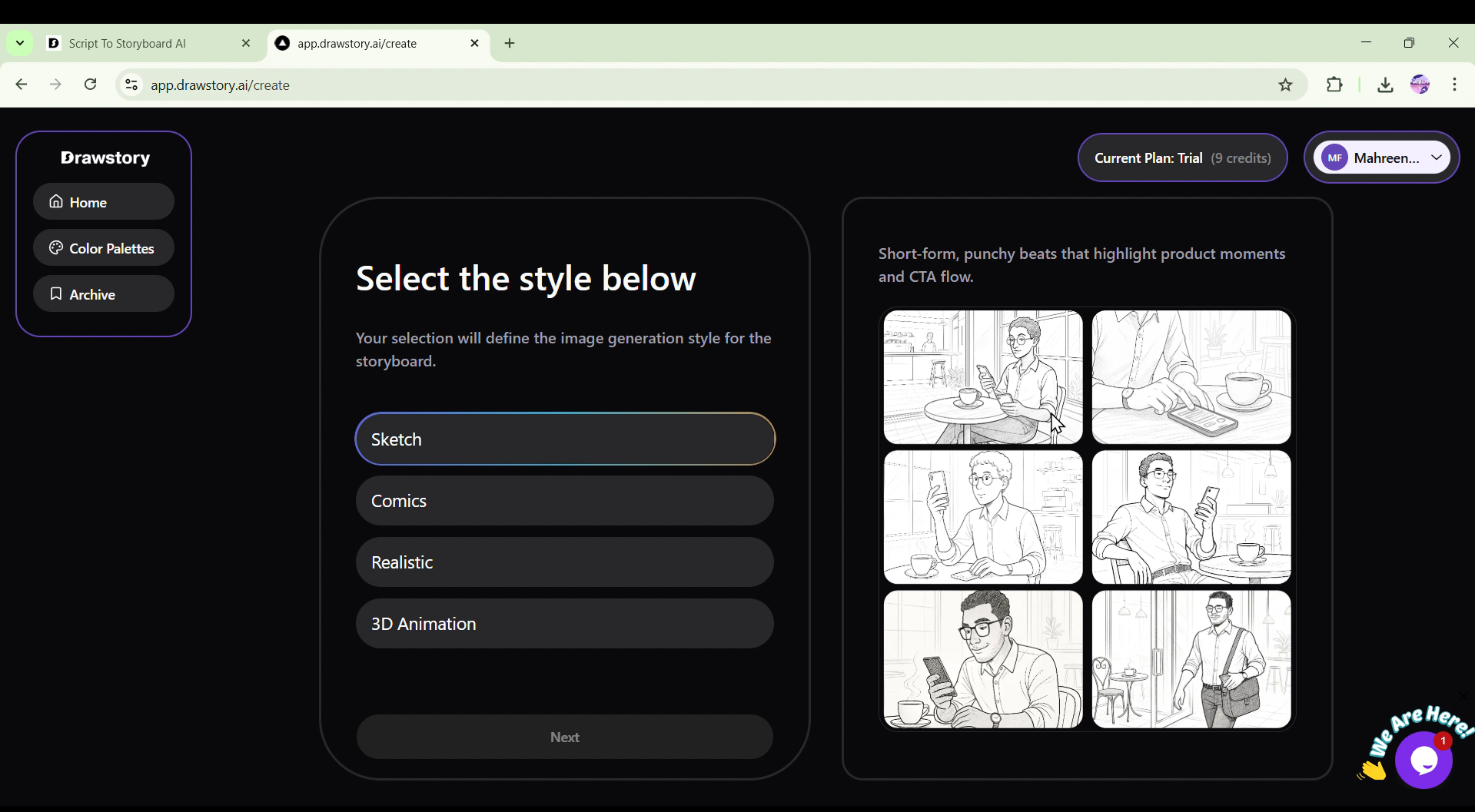
Observed output: Output artifact (Image): Visuals followed a natural story flow — character actions and settings accurately represented across narrative scenes — Screenshot 2026-03-28 192534.png
Input artifact: Input artifact (Artifact): Six-line narrative script : AI is quietly doing the heavy lifting for millions of creators right now. Alex sits at his desk — scripts to write, footage to edit, deadlines already missed. He opens an AI tool, types out a rough idea, and watches a full script appear on screen. Hours of editing get condensed into minutes — structured, clean, ready to publish. What used to take a full day wraps up in a single sitting. AI isn't a shortcut. For creators like Alex, it's just how work gets done now.
Output artifact: Output artifact (Image): Visuals followed a natural story flow — character actions and settings accurately represented across narrative scenes — Screenshot 2026-03-28 192534.png
What changed: Artifact transformed into Image
Test case: Artifact → Image
Input type: Artifact
Input used: Input artifact (Artifact): Technical Script : A base LLM only knows what it learned during training — its knowledge is frozen at the cutoff. This makes it unreliable for anything recent, private, or domain-specific. Retrieval-Augmented Generation (RAG) solves this by retrieving relevant documents before generation. The query is embedded and similar chunks are fetched from a vector database. Those chunks are injected into the prompt alongside the original query. The LLM generates an answer using both its training knowledge and the retrieved context.
Observed output: Output artifact (Image): Technical test used closest available style (comic), resulting in poor alignment with RAG concepts. — Screenshot 2026-03-28 192640.png
Input artifact: Input artifact (Artifact): Technical Script : A base LLM only knows what it learned during training — its knowledge is frozen at the cutoff. This makes it unreliable for anything recent, private, or domain-specific. Retrieval-Augmented Generation (RAG) solves this by retrieving relevant documents before generation. The query is embedded and similar chunks are fetched from a vector database. Those chunks are injected into the prompt alongside the original query. The LLM generates an answer using both its training knowledge and the retrieved context.
Output artifact: Output artifact (Image): Technical test used closest available style (comic), resulting in poor alignment with RAG concepts. — Screenshot 2026-03-28 192640.png
What changed: Artifact transformed into Image
Why it matters / Conclusion: Strong visual match on narrative content, with scenes aligning well to actions and context. For technical and concept-driven scripts, outputs tend to be less aligned due to style constraints, which can limit clarity and accuracy in representing abstract ideas.
Frames were evaluated against their corresponding script line for accuracy in setting, action, and concept representation.
Character ConsistencyStrong — consistent characters without explicit locking9/10▾
Feature tested: Character Consistency
Result: Passed (9/10)
Verdict: Strong — consistent characters without explicit locking
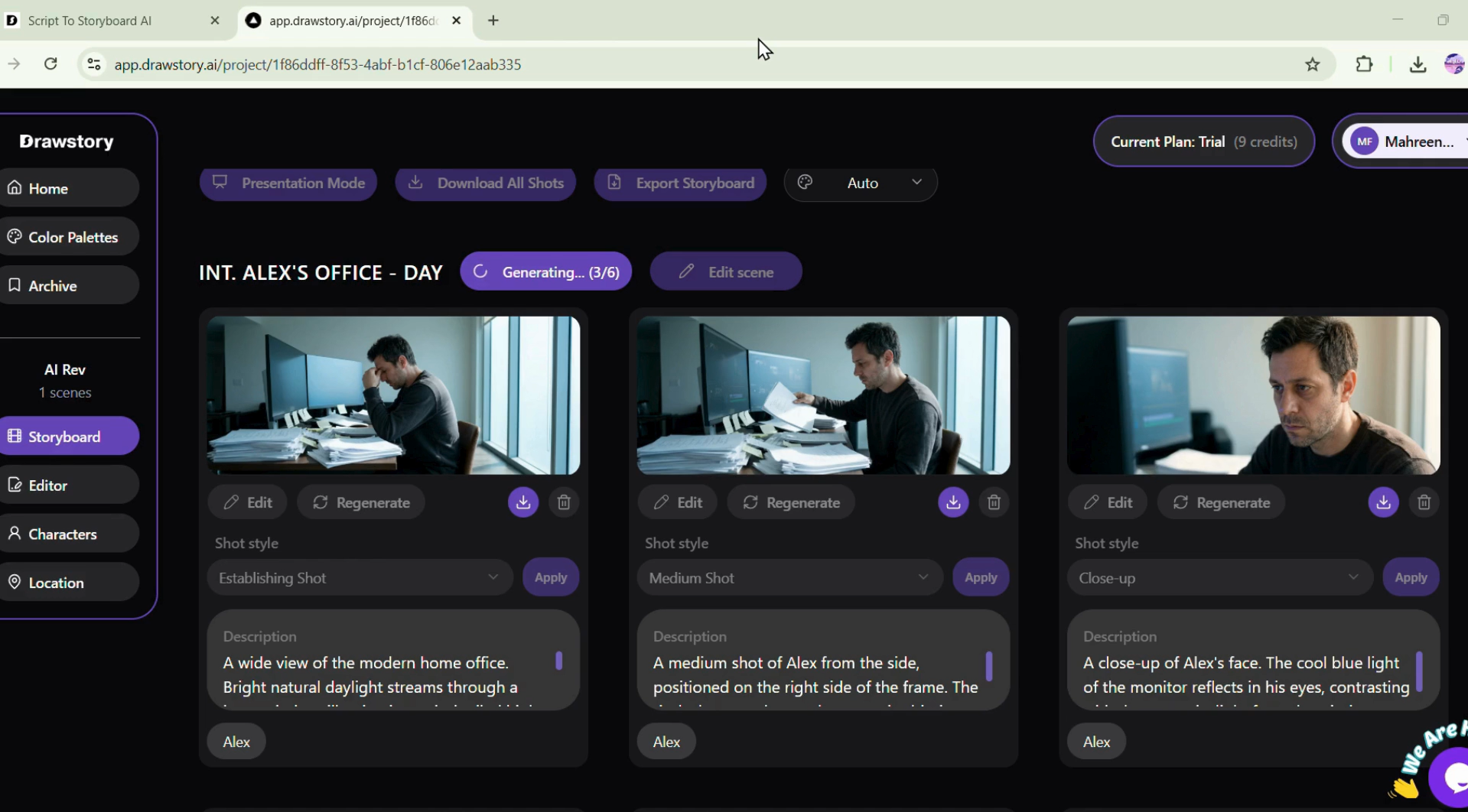
Expected behavior: DrawStory maintained consistent character appearance across all narrative frames without a dedicated confirmation step.
Test case: Artifact → Image
Input type: Artifact
Input used: Input artifact (Artifact): Six-line narrative script : AI is quietly doing the heavy lifting for millions of creators right now. Alex sits at his desk — scripts to write, footage to edit, deadlines already missed. He opens an AI tool, types out a rough idea, and watches a full script appear on screen. Hours of editing get condensed into minutes — structured, clean, ready to publish. What used to take a full day wraps up in a single sitting. AI isn't a shortcut. For creators like Alex, it's just how work gets done now.
Observed output: Output artifact (Image): Same visual style, build, and design maintained across all frames — Screenshot 2026-03-28 192534.png
Input artifact: Input artifact (Artifact): Six-line narrative script : AI is quietly doing the heavy lifting for millions of creators right now. Alex sits at his desk — scripts to write, footage to edit, deadlines already missed. He opens an AI tool, types out a rough idea, and watches a full script appear on screen. Hours of editing get condensed into minutes — structured, clean, ready to publish. What used to take a full day wraps up in a single sitting. AI isn't a shortcut. For creators like Alex, it's just how work gets done now.
Output artifact: Output artifact (Image): Same visual style, build, and design maintained across all frames — Screenshot 2026-03-28 192534.png
What changed: Artifact transformed into Image
Why it matters / Conclusion: Strong character consistency on narrative content. No native character locking mechanism — consistency maintained through style application rather than front-loaded confirmation.
DrawStory maintained consistent character appearance across all narrative frames without a dedicated confirmation step.
Multi-Format ExportStrong — supports PDF and individual image exports8.2/10▾
Feature tested: Multi-Format Export
Result: Passed (8.2/10)
Verdict: Strong — supports PDF and individual image exports
Expected behavior: Drawstory offers both PDF and individual image export across both scripts tested.
Test case: Artifact → PDF document
Input type: Artifact
Input used: Input artifact (Artifact): Script 1 (Creative) AI is quietly doing the heavy lifting for millions of creators right now. Alex sits at his desk — scripts to write, footage to edit, deadlines already missed. He opens an AI tool, types out a rough idea, and watches a full script appear on screen. Hours of editing get condensed into minutes — structured, clean, ready to publish. What used to take a full day wraps up in a single sitting. AI isn't a shortcut. For creators like Alex, it's just how work gets done now.
Observed output: Output artifact (PDF document): PDF export clean and consistently styled — individual image export also available — project-AI-Rev-storyboard.pdf
Input artifact: Input artifact (Artifact): Script 1 (Creative) AI is quietly doing the heavy lifting for millions of creators right now. Alex sits at his desk — scripts to write, footage to edit, deadlines already missed. He opens an AI tool, types out a rough idea, and watches a full script appear on screen. Hours of editing get condensed into minutes — structured, clean, ready to publish. What used to take a full day wraps up in a single sitting. AI isn't a shortcut. For creators like Alex, it's just how work gets done now.
Output artifact: Output artifact (PDF document): PDF export clean and consistently styled — individual image export also available — project-AI-Rev-storyboard.pdf
What changed: Artifact transformed into PDF document
Test case: Artifact → PDF document
Input type: Artifact
Input used: Input artifact (Artifact): Script 2 (Technical) A base LLM only knows what it learned during training — its knowledge is frozen at the cutoff. This makes it unreliable for anything recent, private, or domain-specific. Retrieval-Augmented Generation (RAG) solves this by retrieving relevant documents before generation. The query is embedded and similar chunks are fetched from a vector database. Those chunks are injected into the prompt alongside the original query. The LLM generates an answer using both its training knowledge and the retrieved context.
Observed output: Output artifact (PDF document): PDF export clean and consistently styled — individual image export also available — project-RAG-storyboard.pdf
Input artifact: Input artifact (Artifact): Script 2 (Technical) A base LLM only knows what it learned during training — its knowledge is frozen at the cutoff. This makes it unreliable for anything recent, private, or domain-specific. Retrieval-Augmented Generation (RAG) solves this by retrieving relevant documents before generation. The query is embedded and similar chunks are fetched from a vector database. Those chunks are injected into the prompt alongside the original query. The LLM generates an answer using both its training knowledge and the retrieved context.
Output artifact: Output artifact (PDF document): PDF export clean and consistently styled — individual image export also available — project-RAG-storyboard.pdf
What changed: Artifact transformed into PDF document
Why it matters / Conclusion: Strong export options. Both PDF and individual image formats available and functional.
Drawstory offers both PDF and individual image export across both scripts tested.
%20(1).png)
Pricing & Access
Plans as of March 2026. Tested on the Free plan.
Pricing as of March 2026
Is This Right For You?
A side-by-side guide based on our hands-on testing.
Banner Preview
How the embed badge will look on your site

Embed HTML
Copy this code to your website source
Quick Integration Guide
- 1Copy the HTML code block above.
- 2Paste it into your site's HTML or CMS editor.
- 3Banner appears instantly on your page.
- 4Links back to your tool profile here.
Similar Tools
Discover more AI tools like Drawstory to enhance your workflow.
Comments (0)
Need a custom AI solution for this use case?
If you are looking to build a custom storyboarding, shot planning, or script visualization workflow for your business or internal workflow, email us at contact@futuresmart.ai.
Found something inaccurate or missing? We try to keep our AI research accurate and useful. If you found outdated information, an issue, or have a suggestion, email us at collaborate@aidemos.com.