
Topaz Gigapixel AI Review: Portrait, Product & Archival Tests (2026)
Topaz Gigapixel AI Review: Image Upscaling & Portrait Enhancement Tested (2026)
Our take
- Portrait detail fidelity is a priority — you need natural skin, eye, and hair recovery
- You want fine-grained control over sharpening and denoising per image
- You work with a mix of portrait, archival, and product inputs
- You need a fully automatic one-click workflow with no configuration
Feature scores on this page: 7.5/10 (5 scored features)
Our take
Topaz Gigapixel AI is the industry-standard tool for professional editorial upscaling, referenced directly in photography workflows and publishing use cases. The Preserve face toggle and adjustable Sharpen/Denoise sliders give editors more control than any other tested tool. It requires more configuration than fully automatic tools, which adds steps under deadline pressure, but the output quality on portraits justifies it.
In-Depth Review
Our detailed analysis of Topaz Gigapixel AI — features, performance, and real-world testing.
Feature-by-Feature Breakdown
We tested each feature individually. Click any card to see inputs, outputs, and our observations.
Standard V2 Model8/10▾
Feature tested: Standard V2 Model
Result: Passed (8/10)
Expected behavior: Claims to deliver balanced enhancement of detail, sharpness, and denoising across all image types.
Test case: Image → Image
Input type: Image
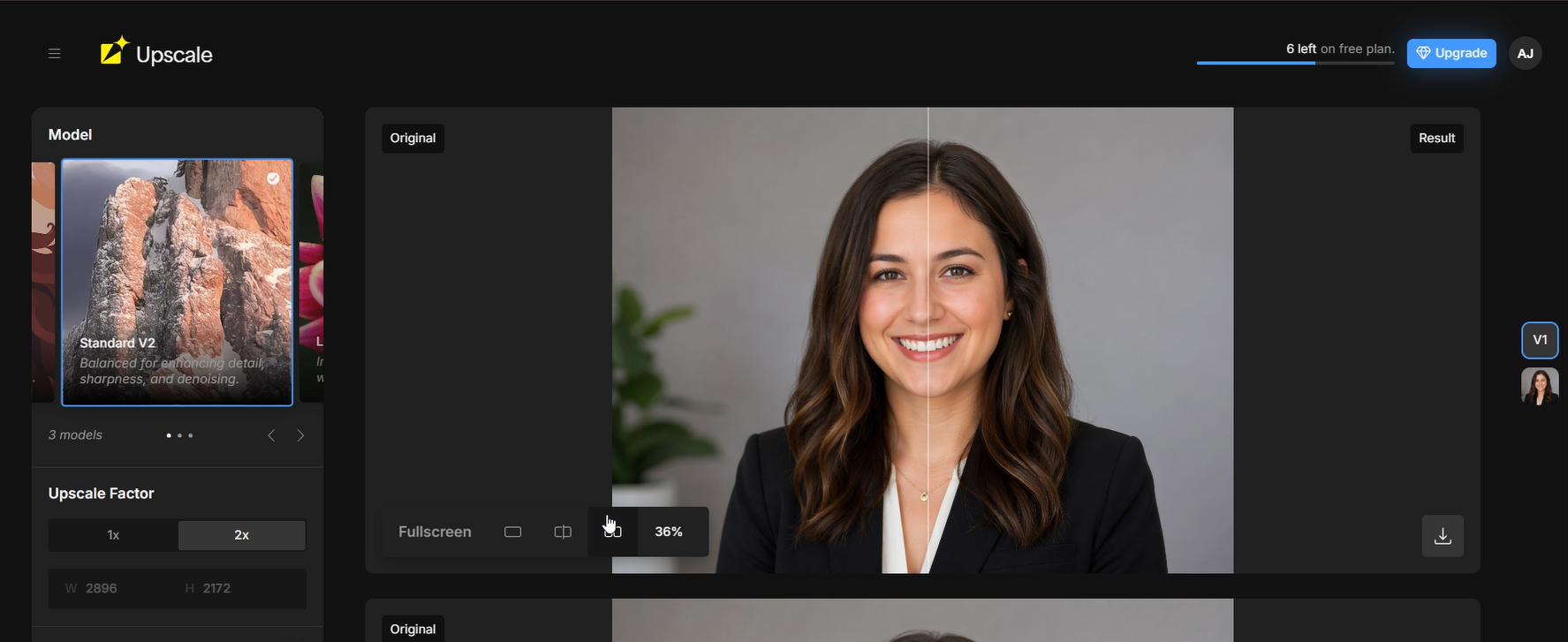
Input used: Input artifact (Image): Input — Input 1 - Headshot-9.png
Observed output: Output artifact (Image): Output — Screenshot 2026-04-23 150022-2.png
Input artifact: Input artifact (Image): Input — Input 1 - Headshot-9.png
Output artifact: Output artifact (Image): Output — Screenshot 2026-04-23 150022-2.png
What changed: Image transformed into Image
Test case: Image → Image
Input type: Image
Input used: Input artifact (Image): Input — Input 1 - Headshot-12.png
Observed output: Output artifact (Image): Output — image (1)-5.png
Input artifact: Input artifact (Image): Input — Input 1 - Headshot-12.png
Output artifact: Output artifact (Image): Output — image (1)-5.png
What changed: Image transformed into Image
Why it matters / Conclusion: Standard V2 is the best default choice for clean portrait and product inputs. Consistent, natural output with no hallucination.
Claims to deliver balanced enhancement of detail, sharpness, and denoising across all image types.


-5.png)
Archival Image Upscaling (Standard V2)7.5/10▾
Feature tested: Archival Image Upscaling (Standard V2)
Result: Passed (7.5/10)
Expected behavior: No dedicated archival model available. Standard V2 used for degraded greyscale inputs.
Test case: Image → Image
Input type: Image
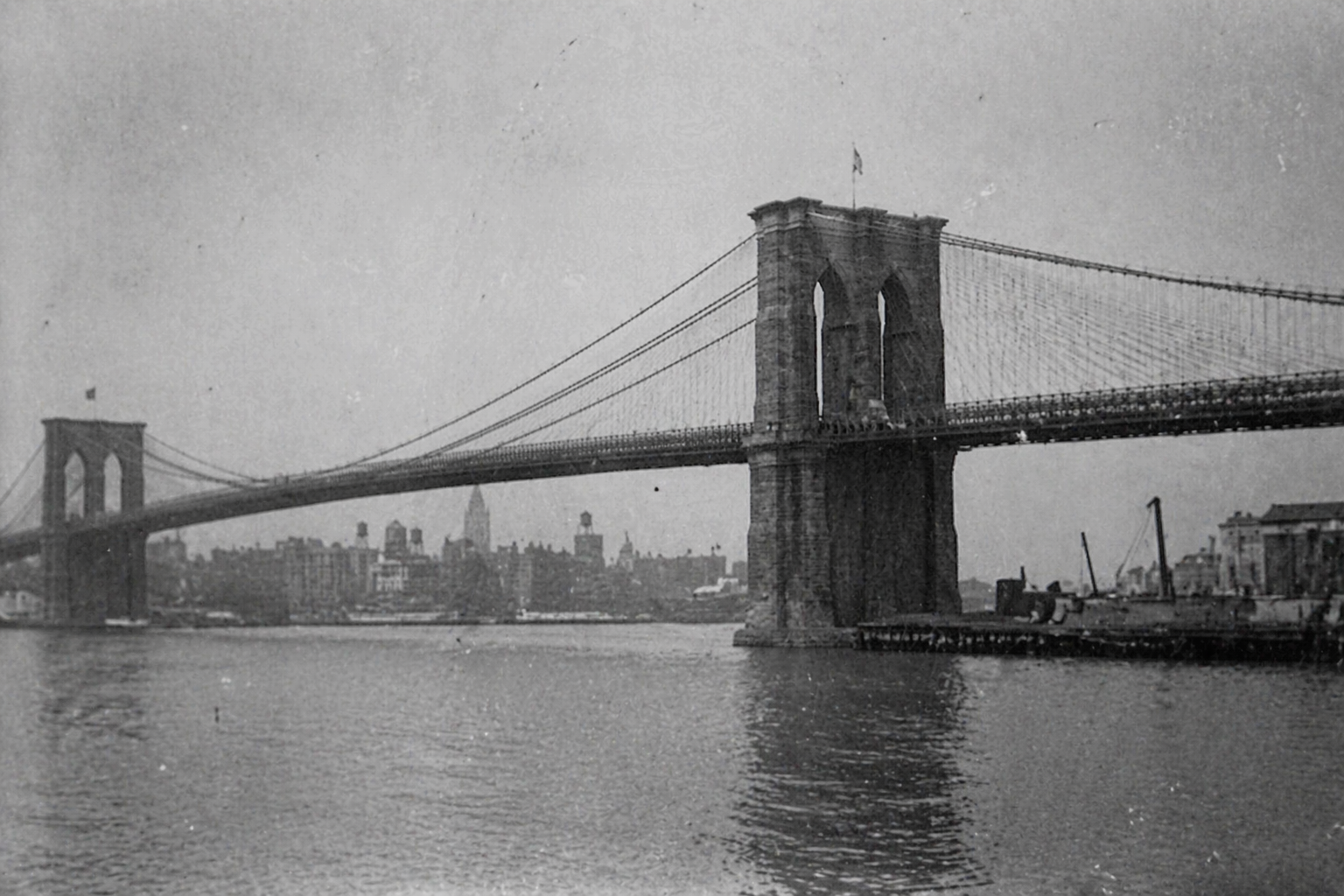
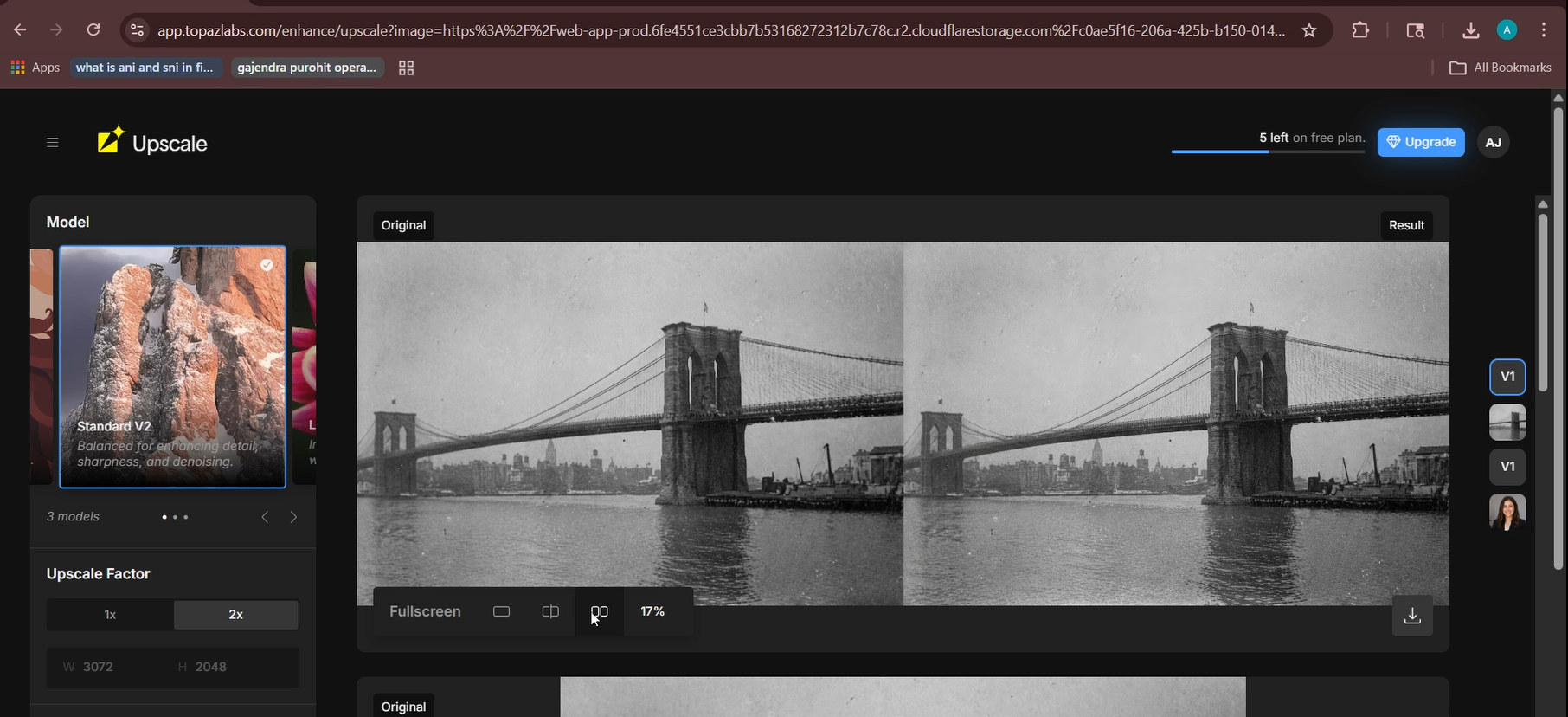
Input used: Input artifact (Image): Input — Input 2 - Historic_photo-8.png
Observed output: Output artifact (Image): Output — Screenshot 2026-04-23 150138-2.png
Input artifact: Input artifact (Image): Input — Input 2 - Historic_photo-8.png
Output artifact: Output artifact (Image): Output — Screenshot 2026-04-23 150138-2.png
What changed: Image transformed into Image
Test case: Image → Image
Input type: Image
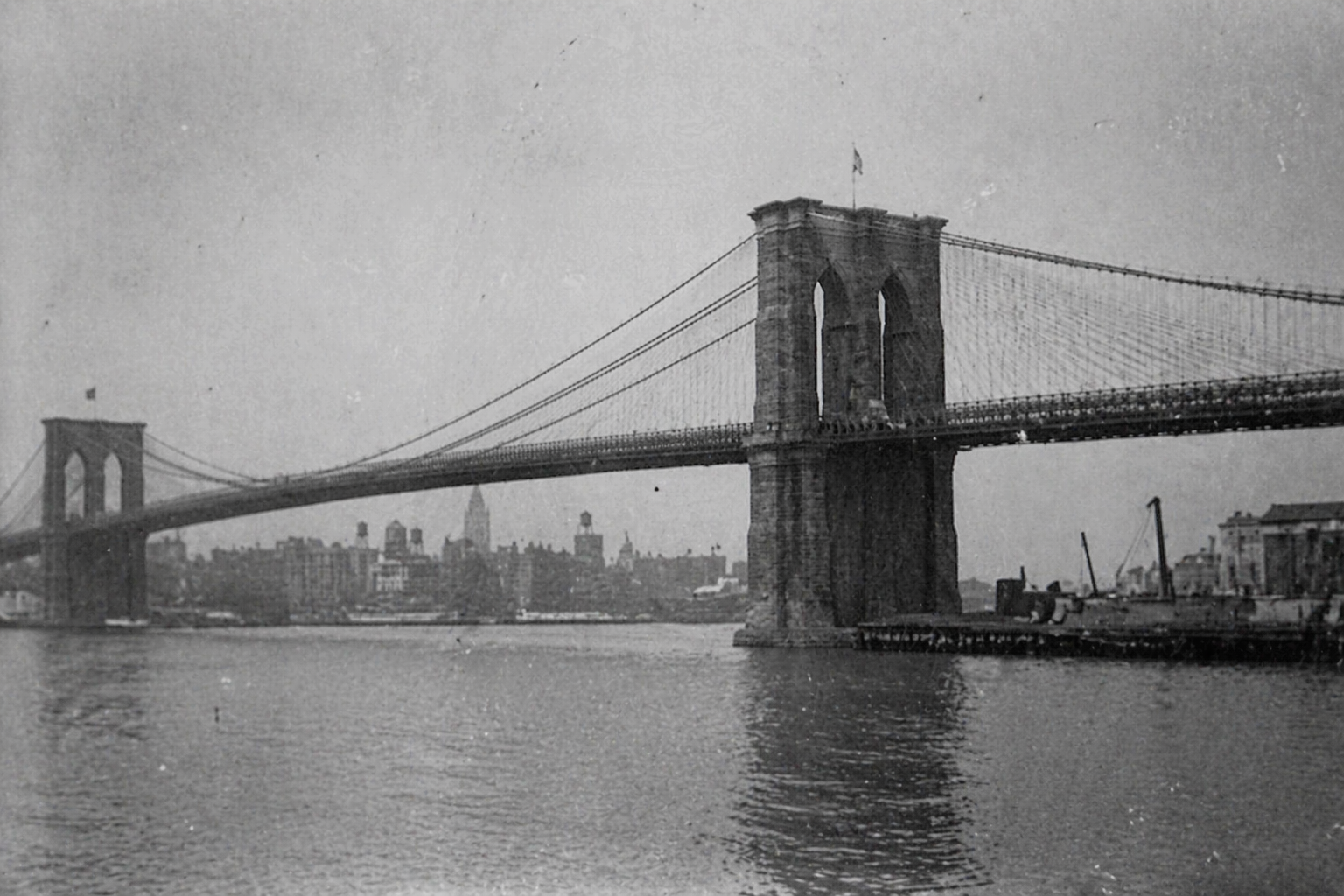
Input used: Input artifact (Image): Input — Input 2 - Historic_photo-7.png
Observed output: Output artifact (Image): Output — image (2)-8.png
Input artifact: Input artifact (Image): Input — Input 2 - Historic_photo-7.png
Output artifact: Output artifact (Image): Output — image (2)-8.png
What changed: Image transformed into Image
Why it matters / Conclusion: Strong structural detail recovery without dedicated archival model. Grain managed conservatively. Lacks the purpose-built archival restoration capability of LetsEnhance's Old photo model.
No dedicated archival model available. Standard V2 used for degraded greyscale inputs.
-8.png)
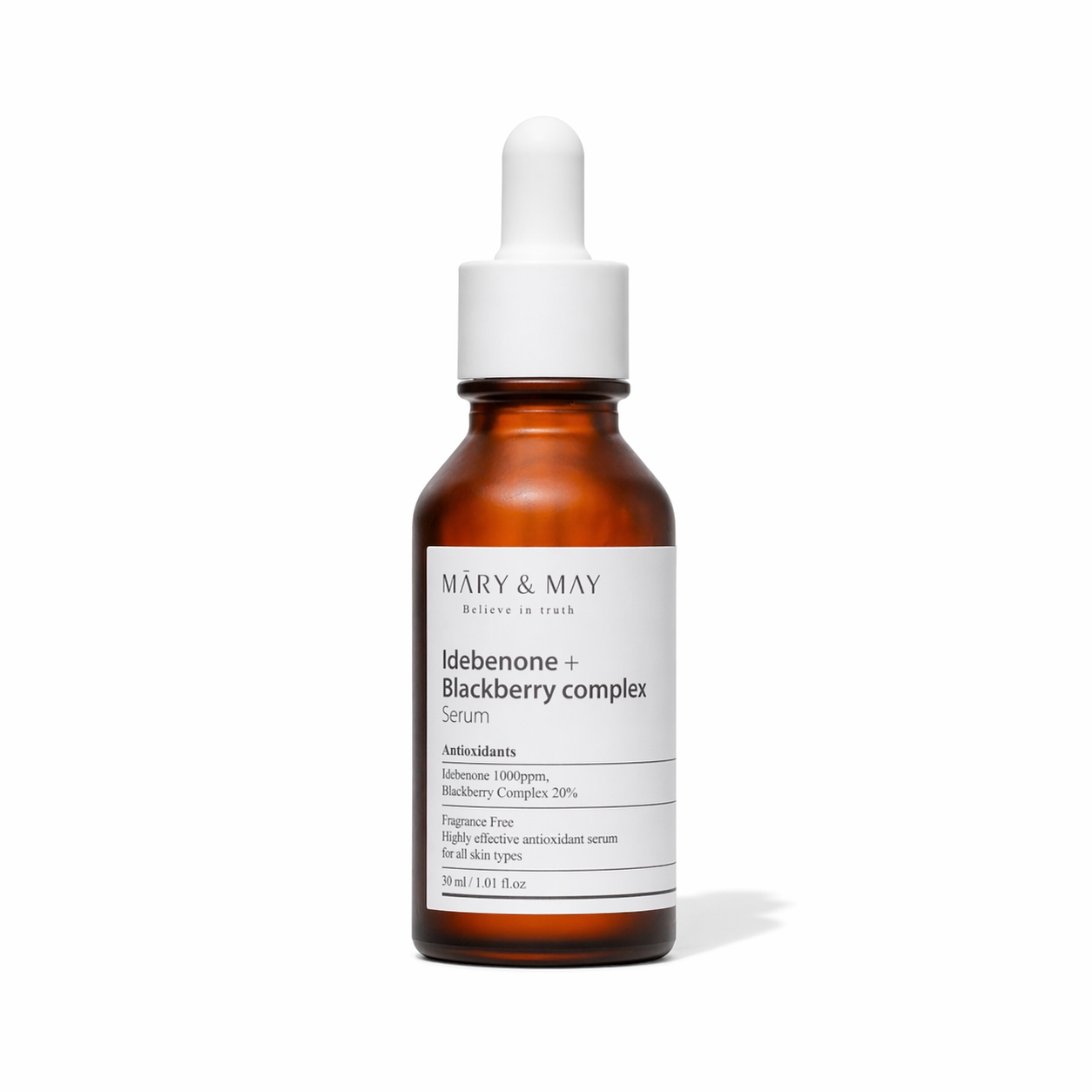
Product Image Upscaling8/10▾
Feature tested: Product Image Upscaling
Result: Passed (8/10)
Expected behavior: Claims to upscale product photography with preserved edge sharpness, surface texture fidelity, and label text legibility using the Standard V2 model.
Test case: Image → Image
Input type: Image
Input used: Input artifact (Image): Input — Input 3 - Product_image-4.png
Observed output: Output artifact (Image): Output — Screenshot (230)-1.png
Input artifact: Input artifact (Image): Input — Input 3 - Product_image-4.png
Output artifact: Output artifact (Image): Output — Screenshot (230)-1.png
What changed: Image transformed into Image
Why it matters / Conclusion: Strong product upscaling result. Full label text — "MĀRY & MAY", "Idebenone + Blackberry complex", "Serum", ingredient list, and volume — all legible on the right side of the fullscreen comparison. Clean white background preserved with no noise. Bottle edges and glass surface reflections rendered cleanly with no haloing. 4x recommended for print catalogue use.
Claims to upscale product photography with preserved edge sharpness, surface texture fidelity, and label text legibility using the Standard V2 model.
-1.png)
Preserve Face Toggle, Sharpen and Denoise Sliders7/10▾
Feature tested: Preserve Face Toggle, Sharpen and Denoise Sliders
Result: Passed (7/10)
Expected behavior: Claims to prevent face distortion during upscaling by applying face-specific processing to portrait regions. Allows the editor to adjust sharpening intensity and noise reduction independently. Both default to 50, adjustable per image.
Test case: Image → Image
Input type: Image
Input used: Input artifact (Image): Input — Input 1 - Headshot-11.png
Observed output: Output artifact (Image): Output — Screenshot (229)-2.png
Input artifact: Input artifact (Image): Input — Input 1 - Headshot-11.png
Output artifact: Output artifact (Image): Output — Screenshot (229)-2.png
What changed: Image transformed into Image
Why it matters / Conclusion: Preserve face is the strongest portrait-specific feature of any tool tested. Directly prevents the plastic skin effect common in AI upscaling. Recommended on for all portrait editorial inputs. The most granular enhancement controls of any tool tested. Requires manual judgment per image type but gives editors direct control over output quality
Claims to prevent face distortion during upscaling by applying face-specific processing to portrait regions. Allows the editor to adjust sharpening intensity and noise reduction independently. Both default to 50, adjustable per image.

-2.png)
Scale Factor (Up to 8x)7/10▾
Feature tested: Scale Factor (Up to 8x)
Result: Passed (7/10)
Expected behavior: Offers 1x, 2x, 4x, 6x, and 8x scale options.
Test case: Text prompt → Image
Input type: Text prompt
Input used: Input artifact (Text prompt): Three low resolution input images.
Observed output: Output artifact (Image): Output — Screenshot (226)-1.png
Input artifact: Input artifact (Text prompt): Three low resolution input images.
Output artifact: Output artifact (Image): Output — Screenshot (226)-1.png
What changed: Text prompt transformed into Image
Offers 1x, 2x, 4x, 6x, and 8x scale options.
-1.png)
Pricing & Access
* Pricing as of April 2026. We re-check quarterly
Is This Right For You?
A side-by-side guide based on our hands-on testing.
Banner Preview
How the embed badge will look on your site

Embed HTML
Copy this code to your website source
Quick Integration Guide
- 1Copy the HTML code block above.
- 2Paste it into your site's HTML or CMS editor.
- 3Banner appears instantly on your page.
- 4Links back to your tool profile here.
Similar Tools
Discover more AI tools like Topaz Gigapixel AI to enhance your workflow.
Comments (0)
Need a custom AI solution for this use case?
If you are looking to build a custom image upscaling, portrait enhancement, or photo restoration workflow for your business or internal workflow, email us at contact@futuresmart.ai.
Found something inaccurate or missing? We try to keep our AI research accurate and useful. If you found outdated information, an issue, or have a suggestion, email us at collaborate@aidemos.com.